Download Shapr3D
Download in seconds and get to your first model in 15 minutes.
iPadOS

Requires iPadOS 17 or later
preferably with Apple Pencil
Installation guide

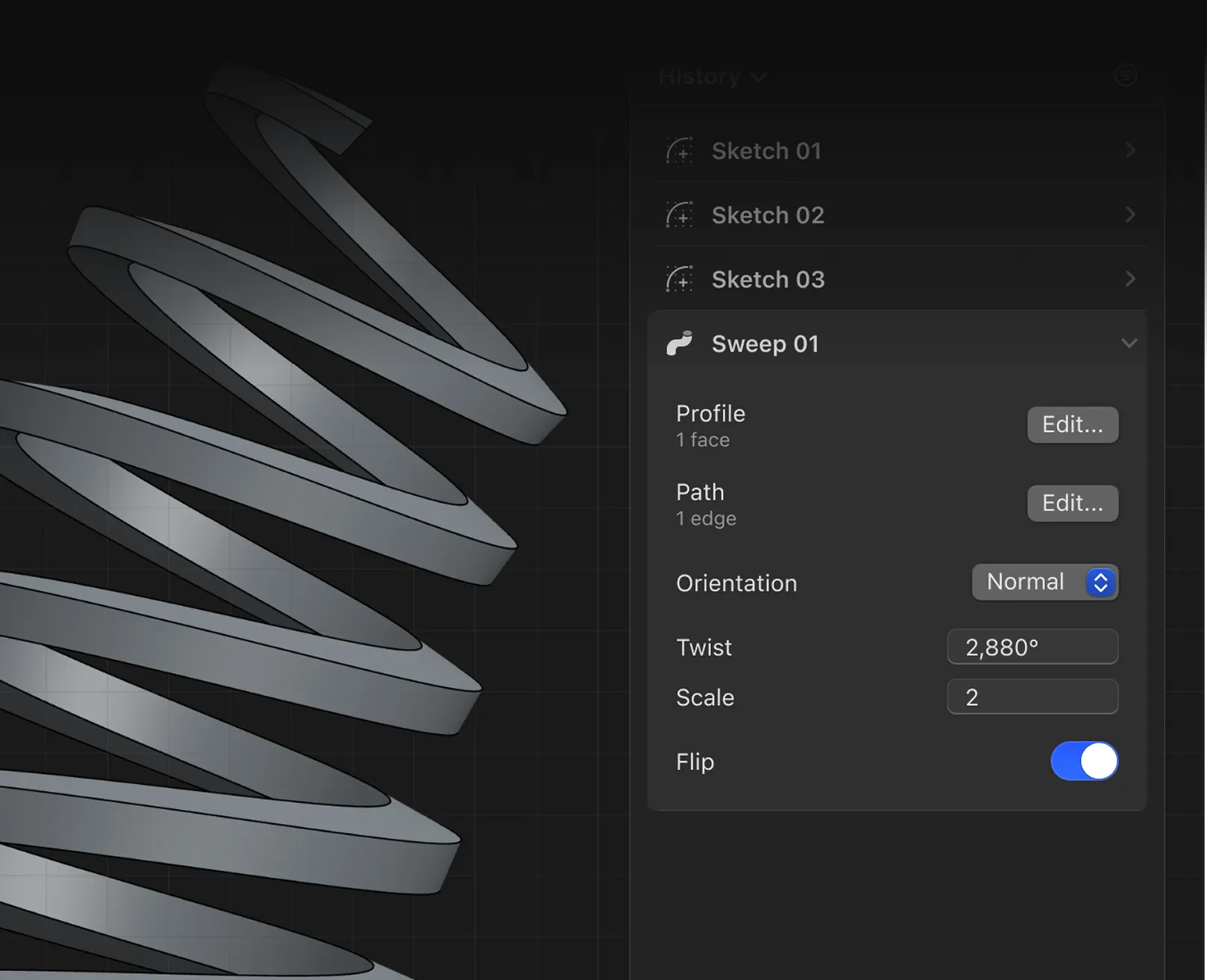
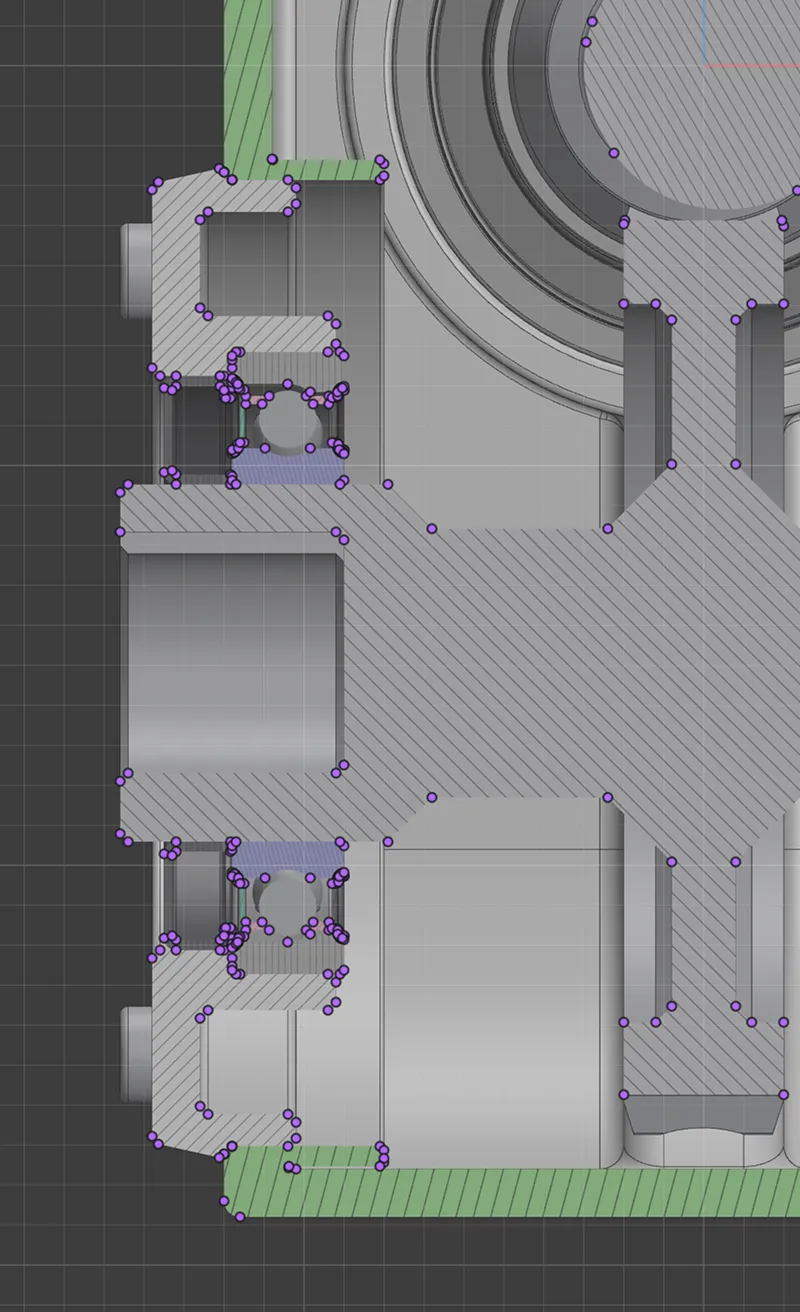
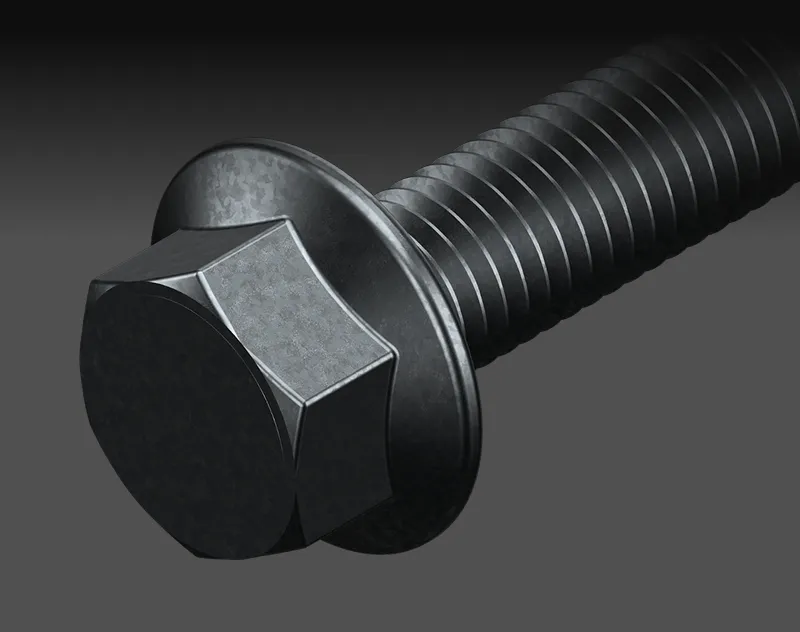


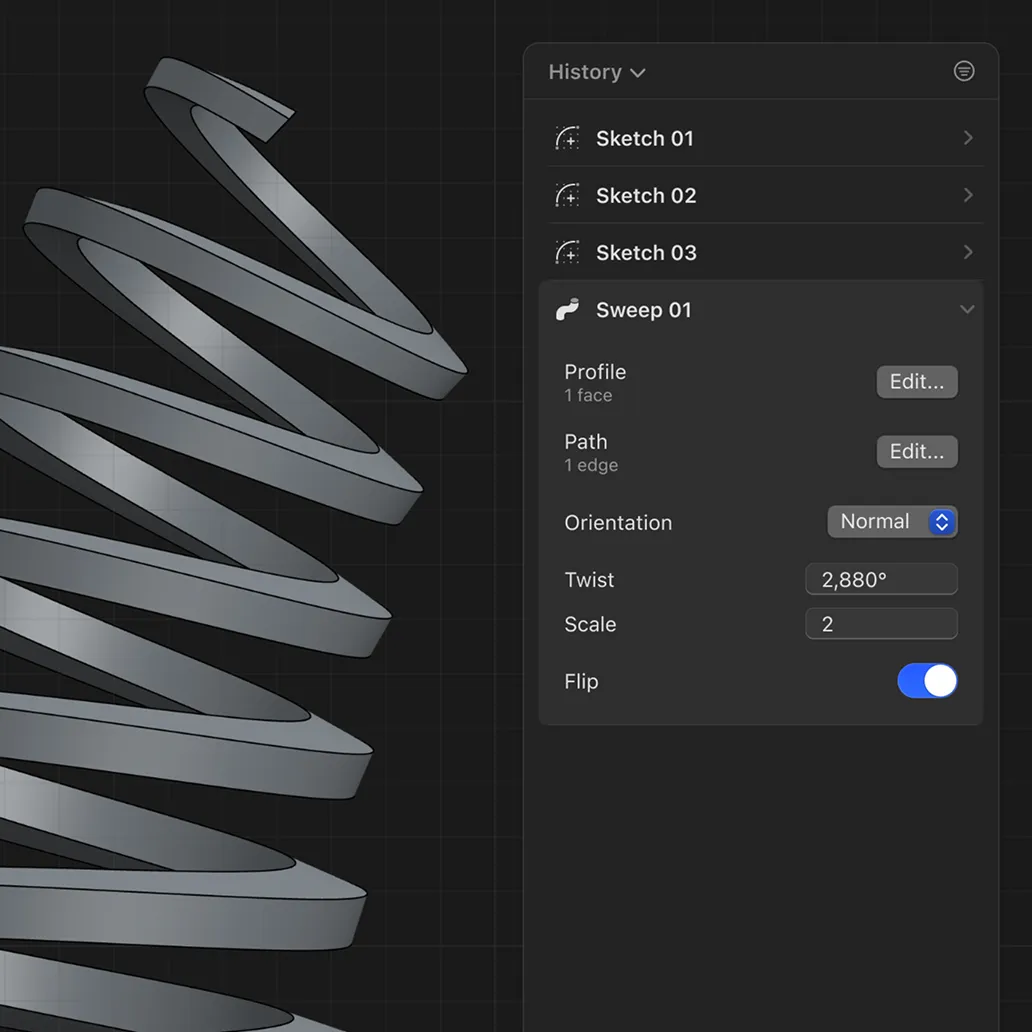
Orientation, Scale and Twist options in Sweep let you change profile size and rotation along a path. Use them for things like tapered grips, twisted cables, or decorative profiles. In the history sidebar in Sweep cards, adjust the orientation, scale and twist parameters to fine-tune your model.
Coming in January.
20+ releases, shipped almost every two weeks, brought steady workflow improvements, performance fixes, and new tools across Shapr3D in 2025.
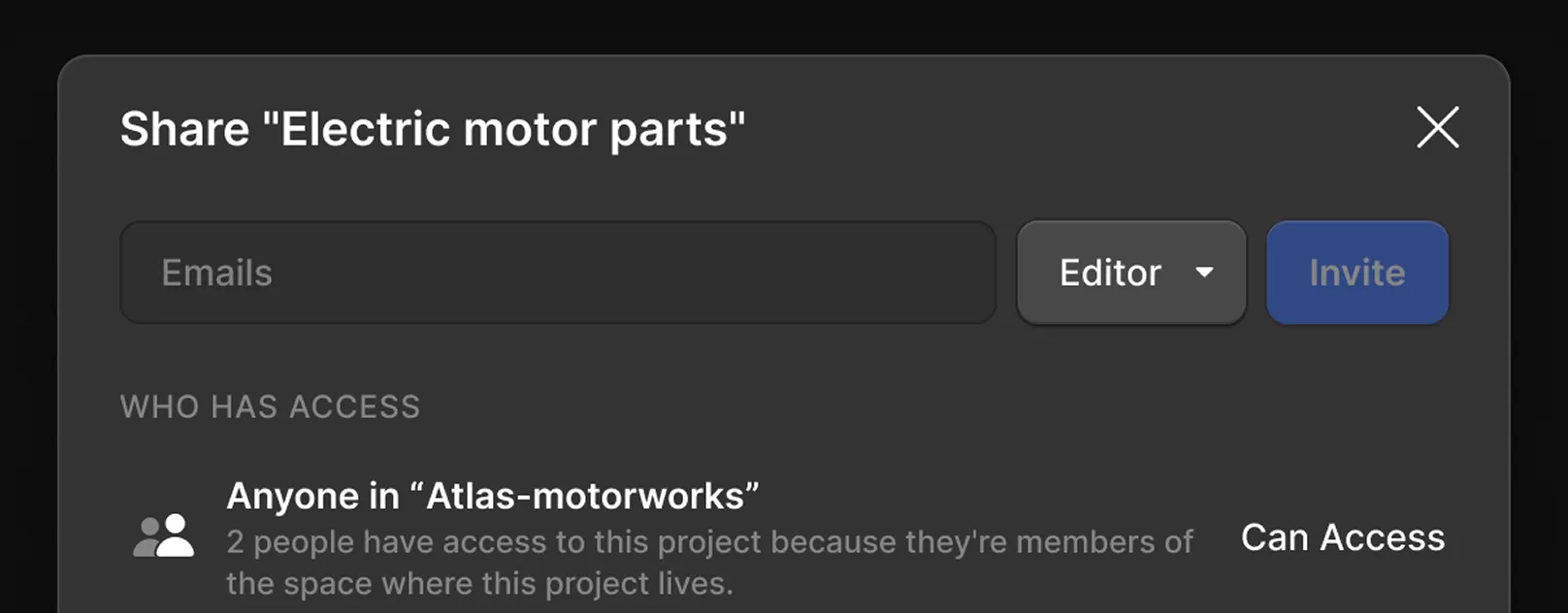
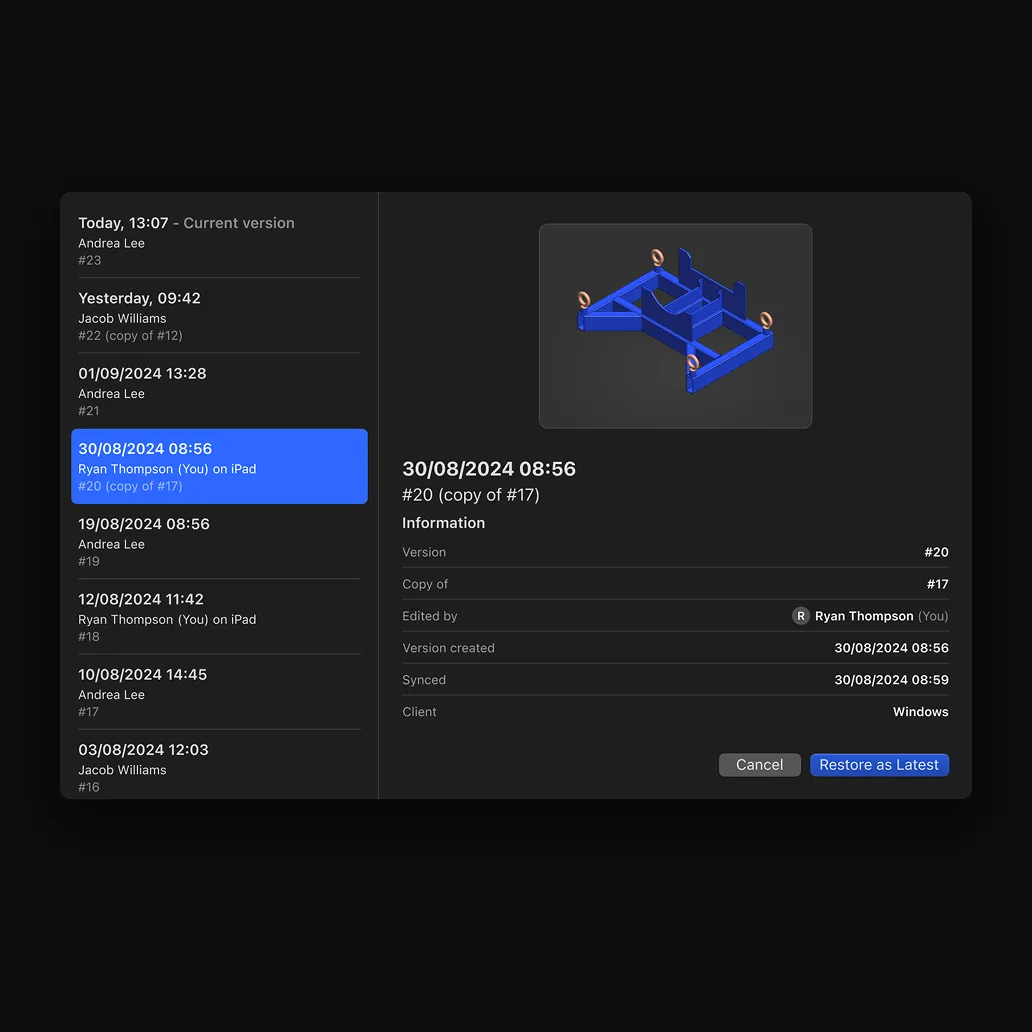
Shapr3D Teams is a shared workspace where projects, access, and editing history are managed for your team. It’s useful when multiple designers and stakeholders need controlled access to designs, track who changed what, and keep all files in one place. Invite team members to your team, or add ad-hoc editors to individual projects.
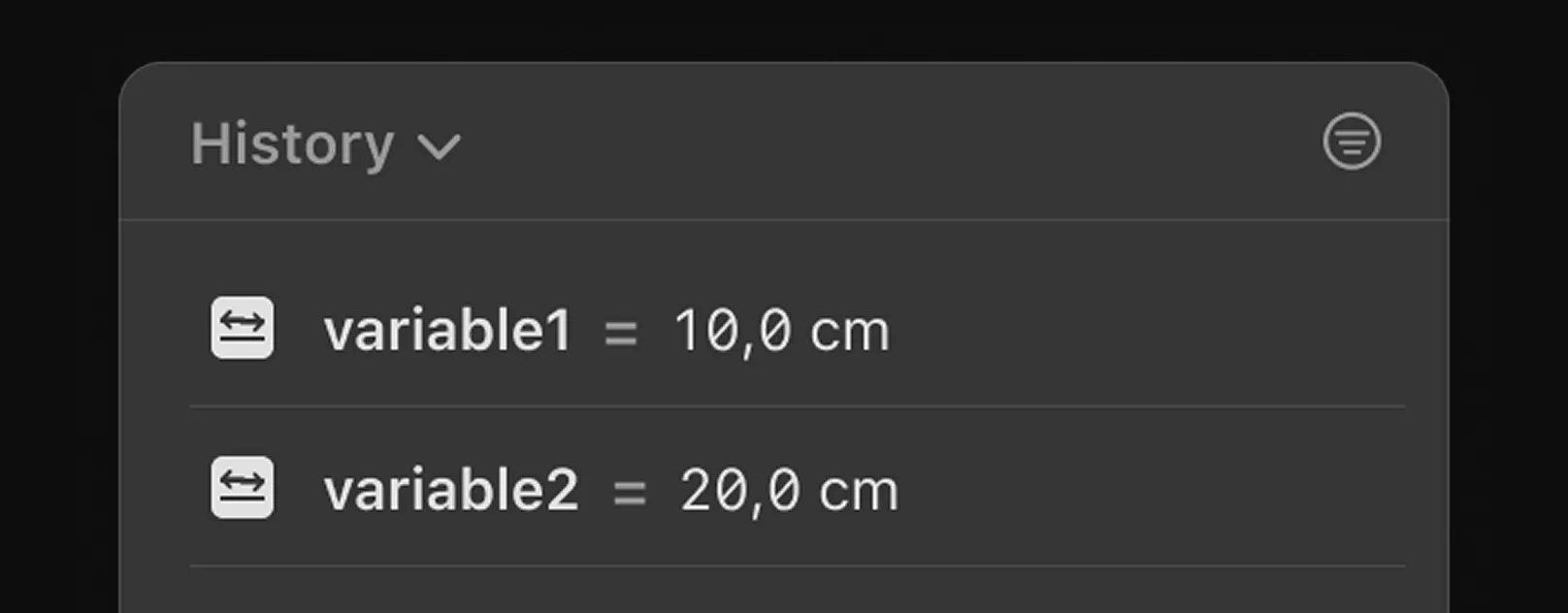
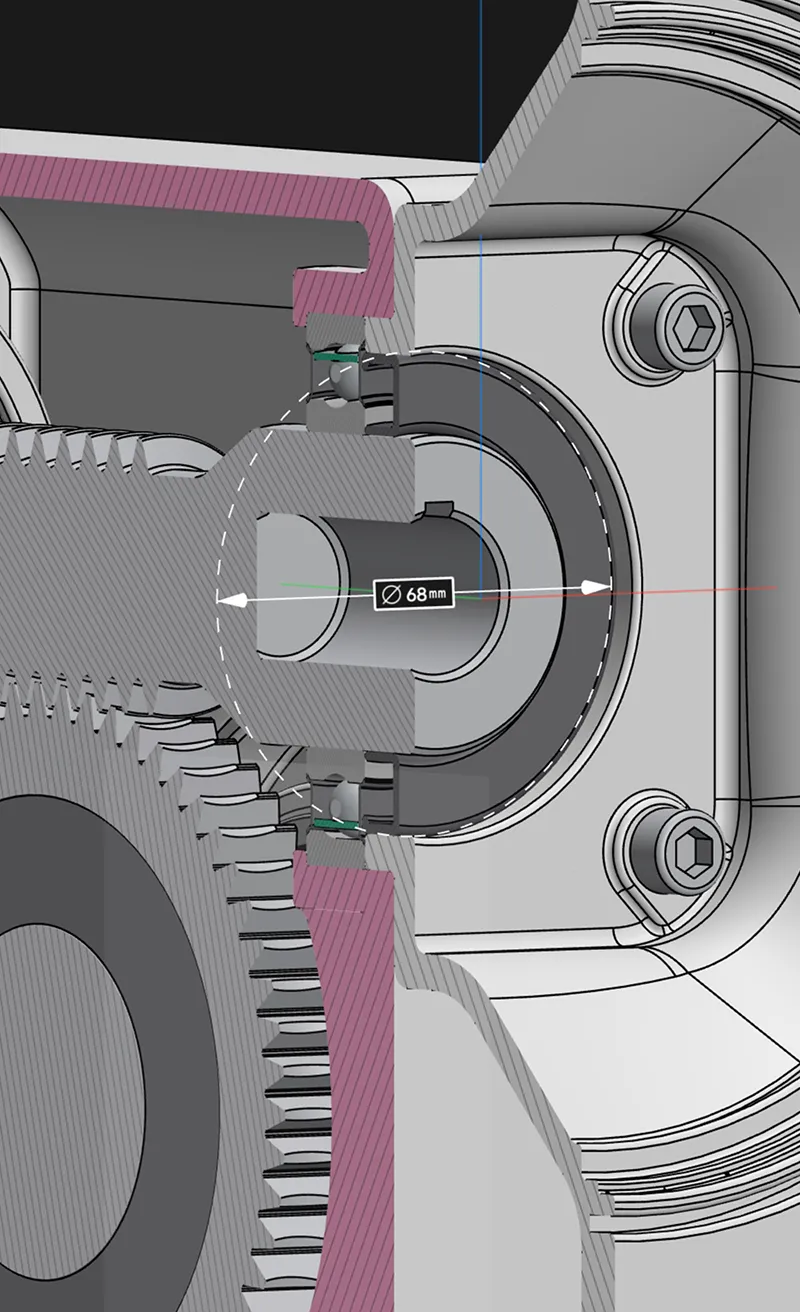
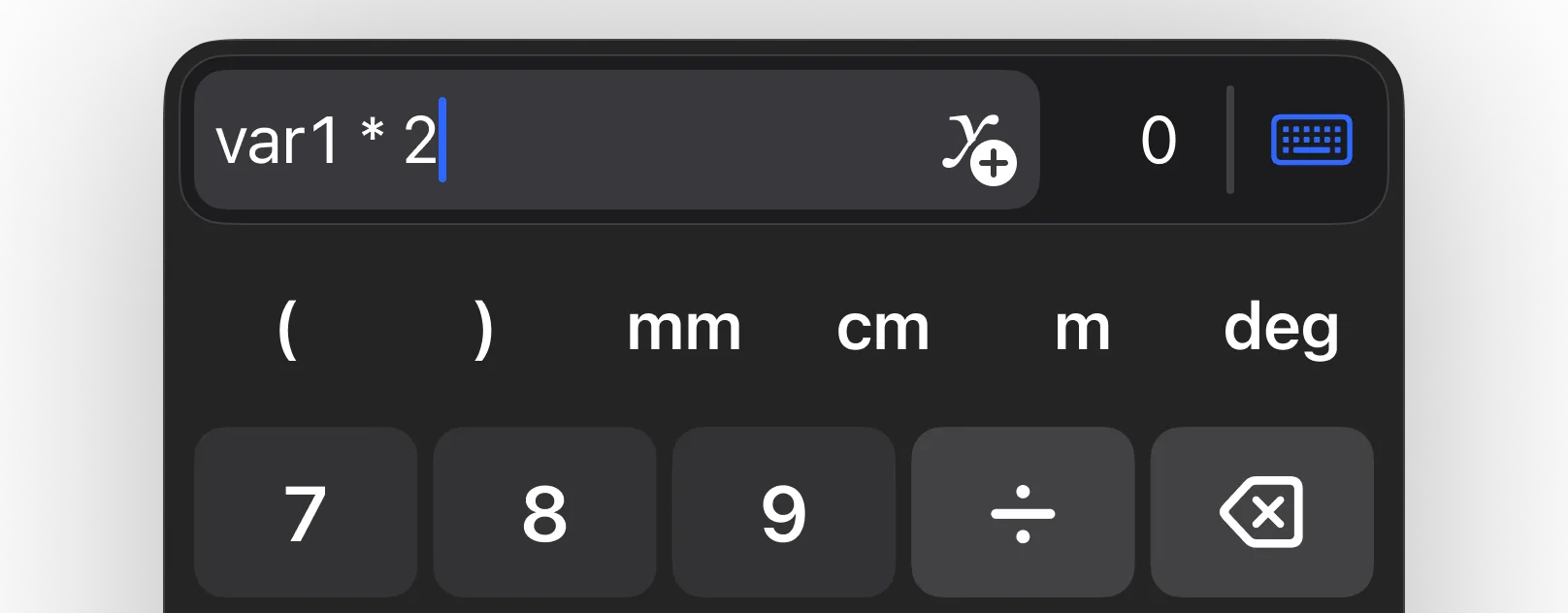
Expressions let you type formulas (for example width/2 or 3*thickness+2mm) directly into dimension fields instead of entering fixed values. Use them to keep relationships between dimensions precise and automatically in sync when you tweak one driving value. Click a dimension, type your formula using numbers, operators, and variables, then confirm to lock in that parametric relationship.

Images can be brought into your project and then included when you visualize your models. They’re useful as reference boards, logos, or supporting graphics around your model in the scene. Import images via Add > Image or File, position them in 3D, then switch to Visualization and use Capture to export the composed view.

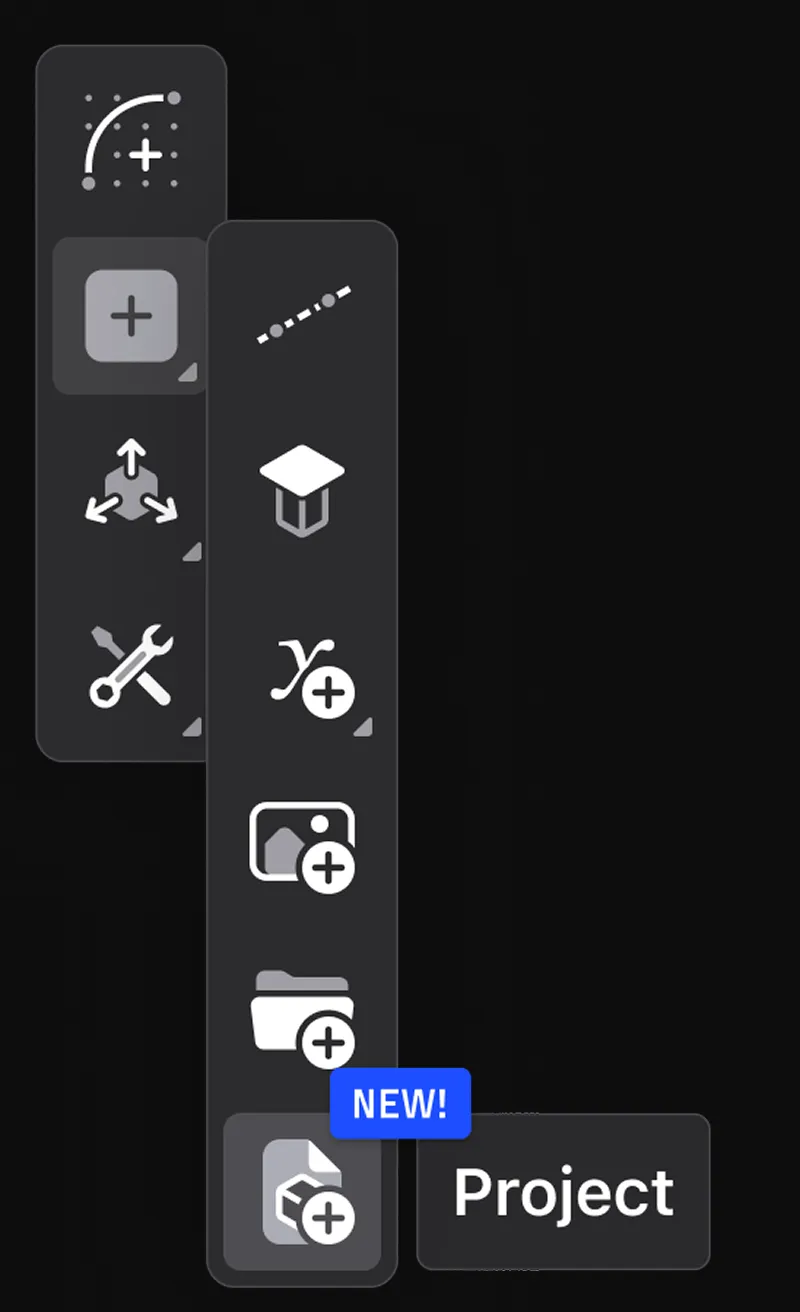
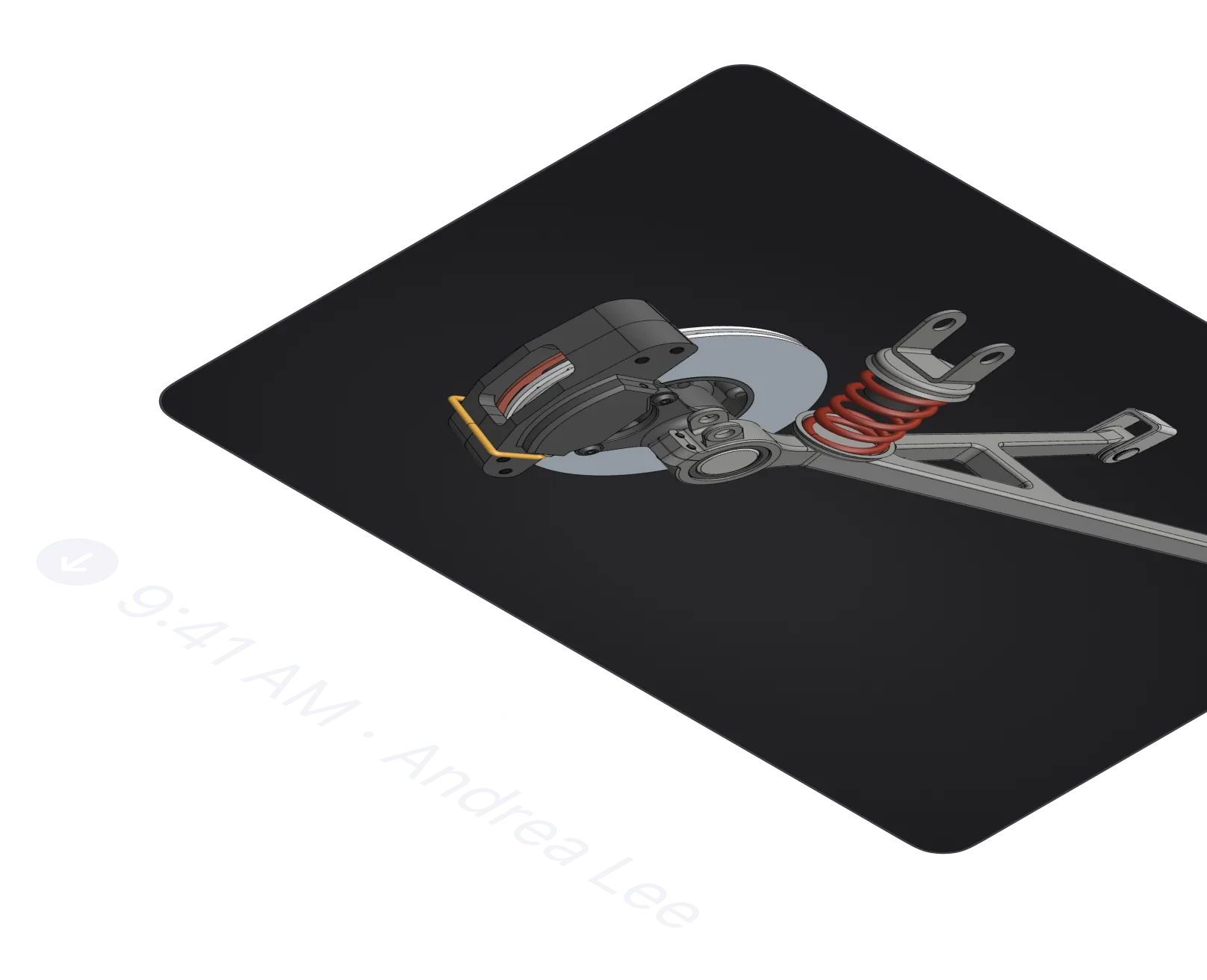
Project links are shareable URLs that point directly to a Shapr3D project, so teammates can open it in the app or access it from a browser. They’re great for handing off work, referencing designs in documentation, and giving others a quick way to download or open the .shapr file without opening the app.

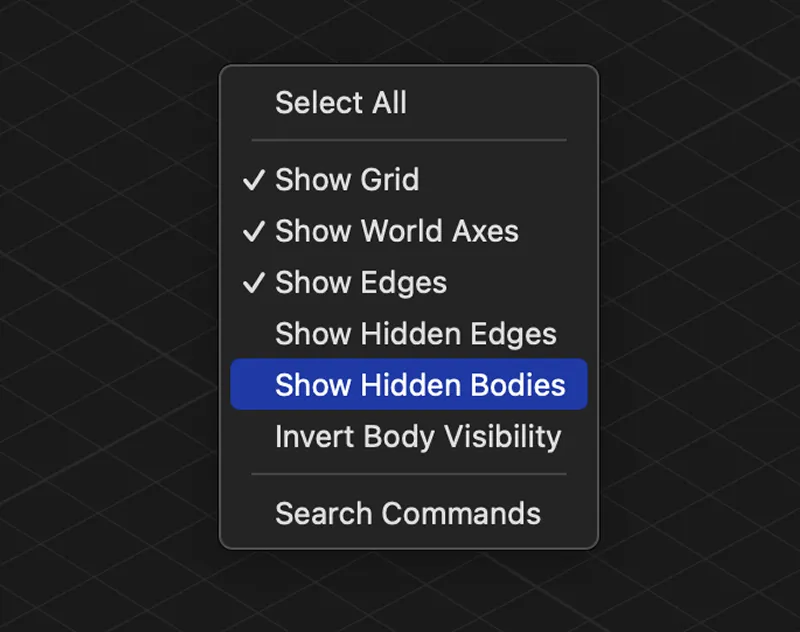
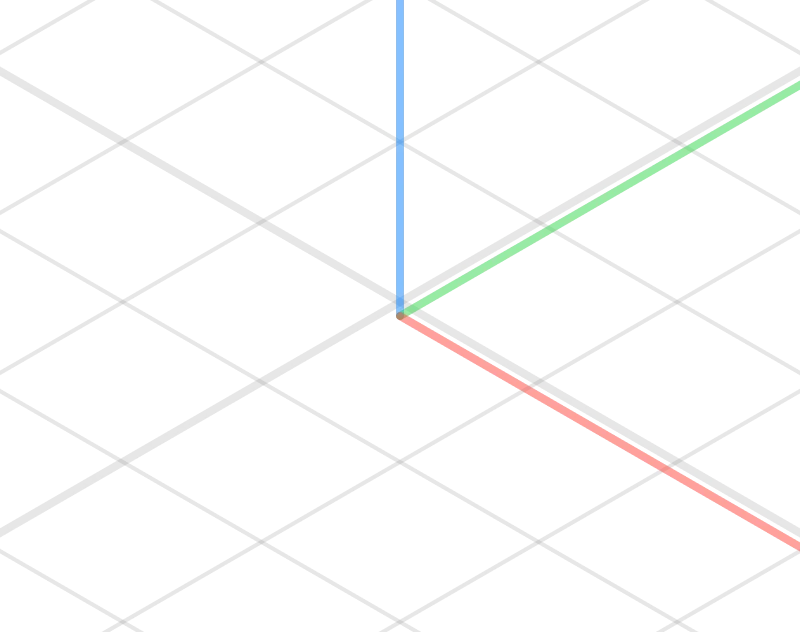
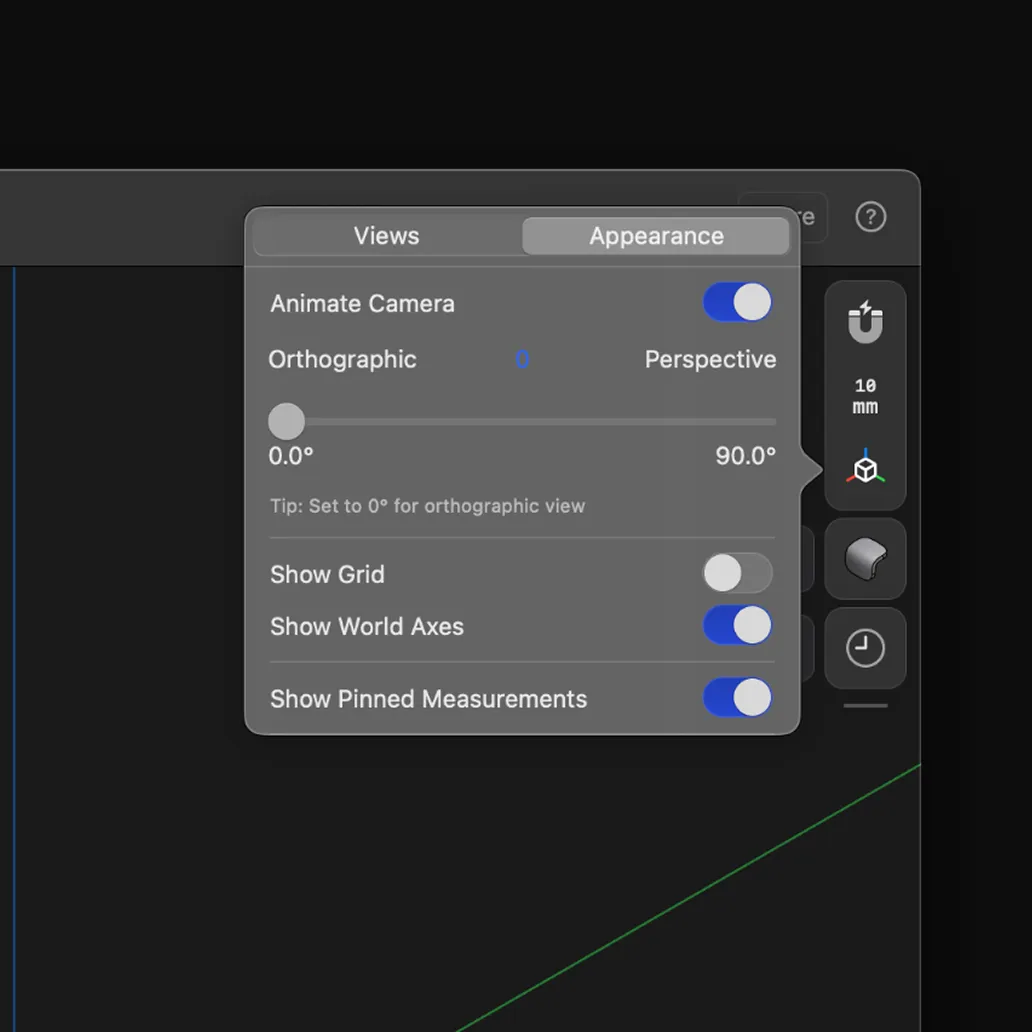
Turning off the grid gives you a clean, distraction-free view of your model, which is especially useful for reviews, screenshots, and Visualization. It’s handy when you’re past the sketching stage and want to focus purely on form and surface quality. Open Views & Appearance / Appearance and toggle Grid and, if needed, the World Axes off.
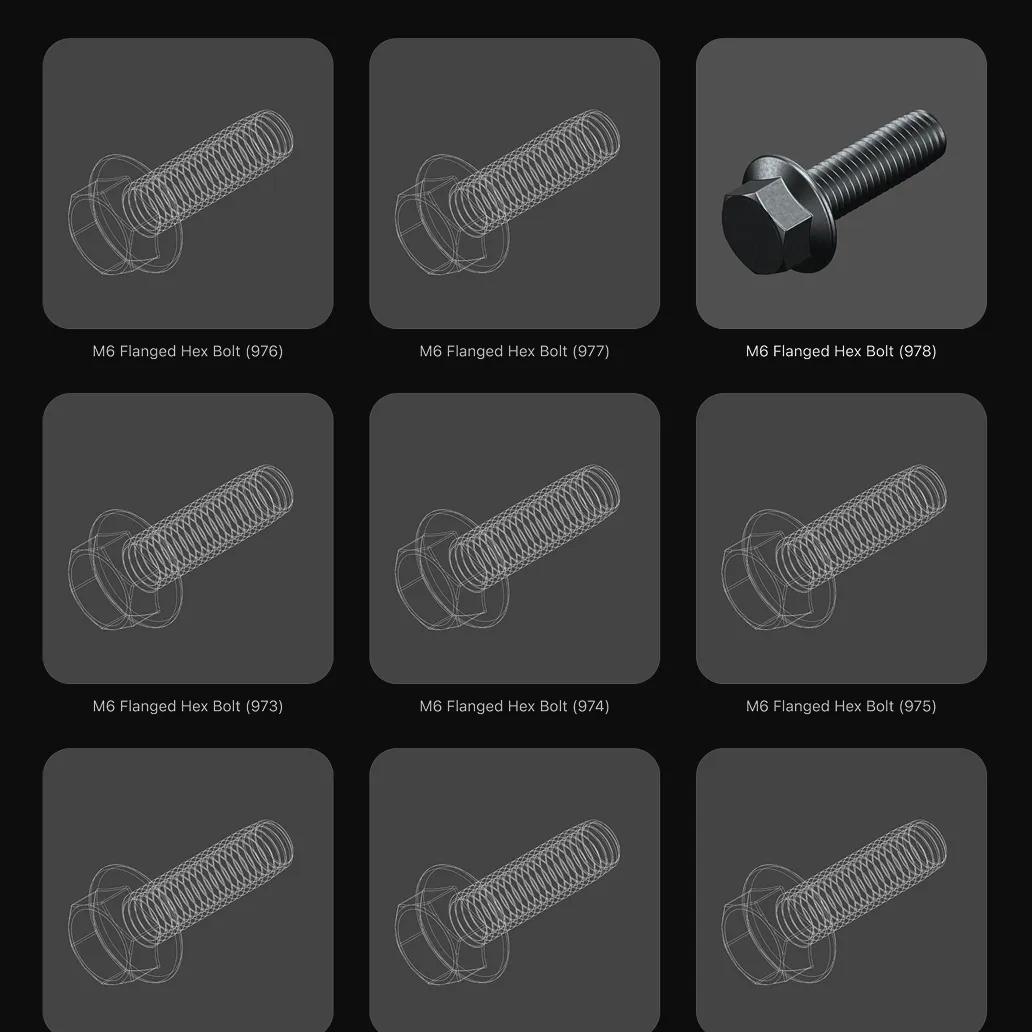
Instancing optimizes memory usage by storing only one copy of identical files or parts, even if you use them many times in a project. This frees up RAM so more models and references can be loaded at once without slowing things down. With lower memory load, you’ll hit fewer performance limits and can work more smoothly on larger assemblies.
Coming in January.
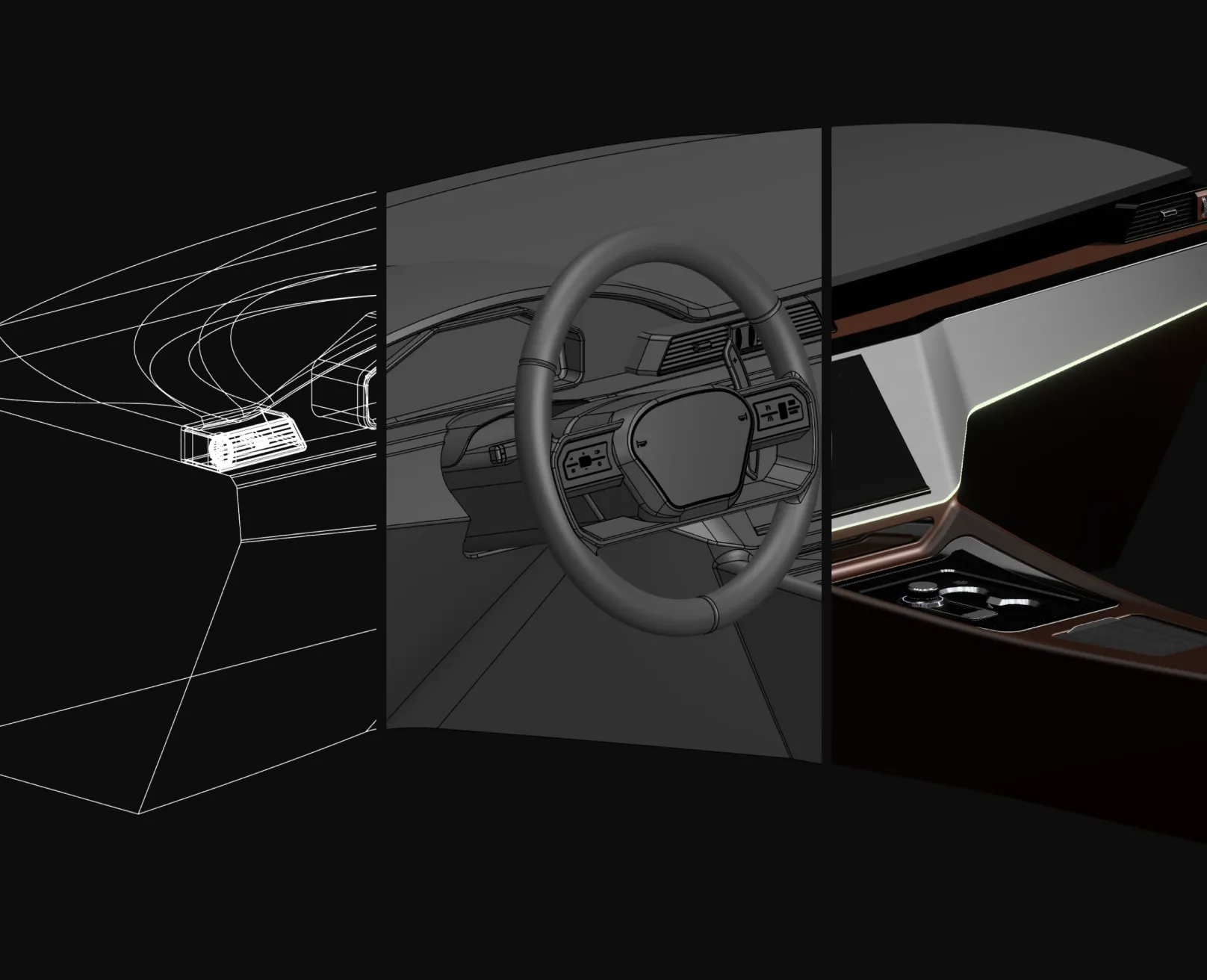
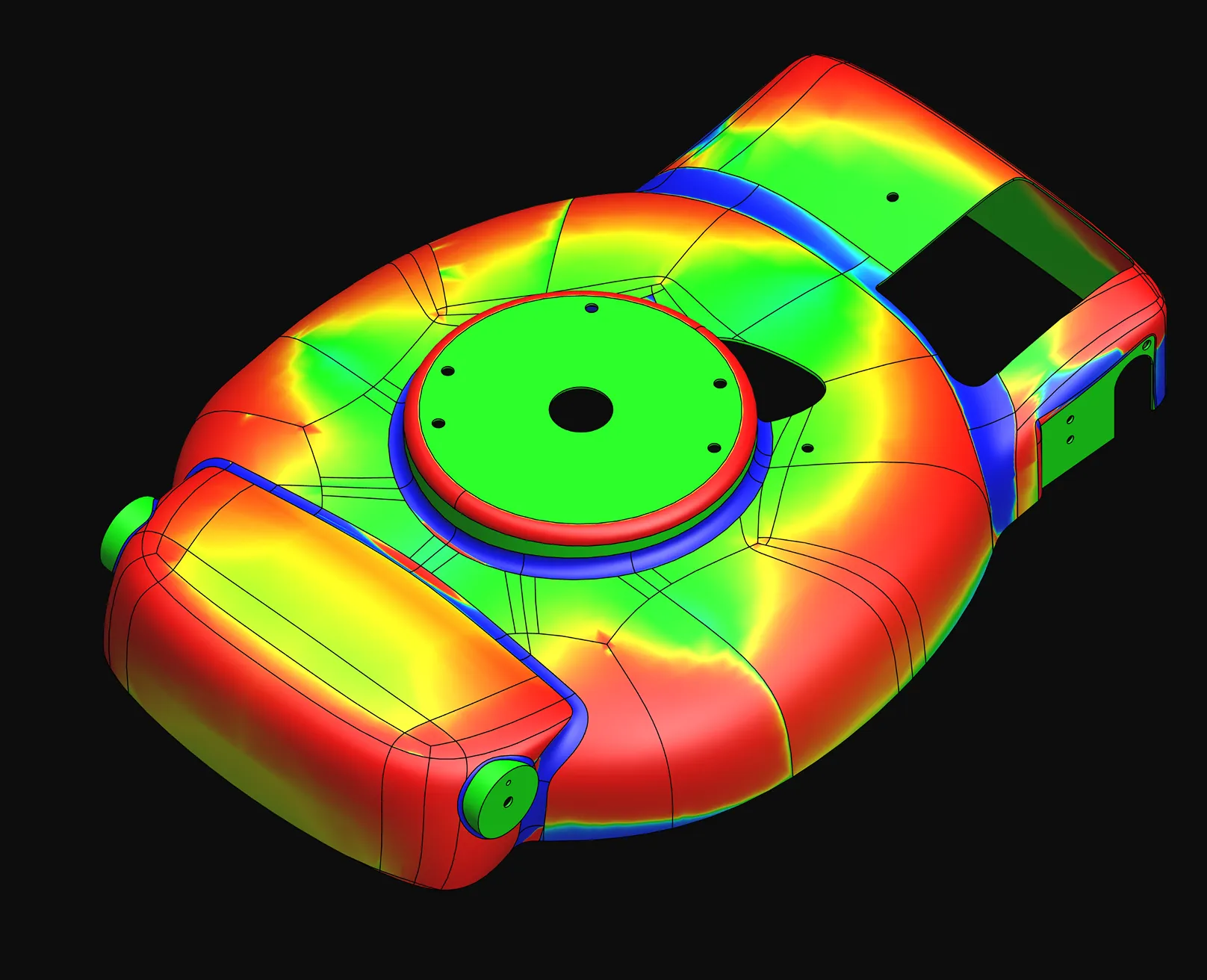
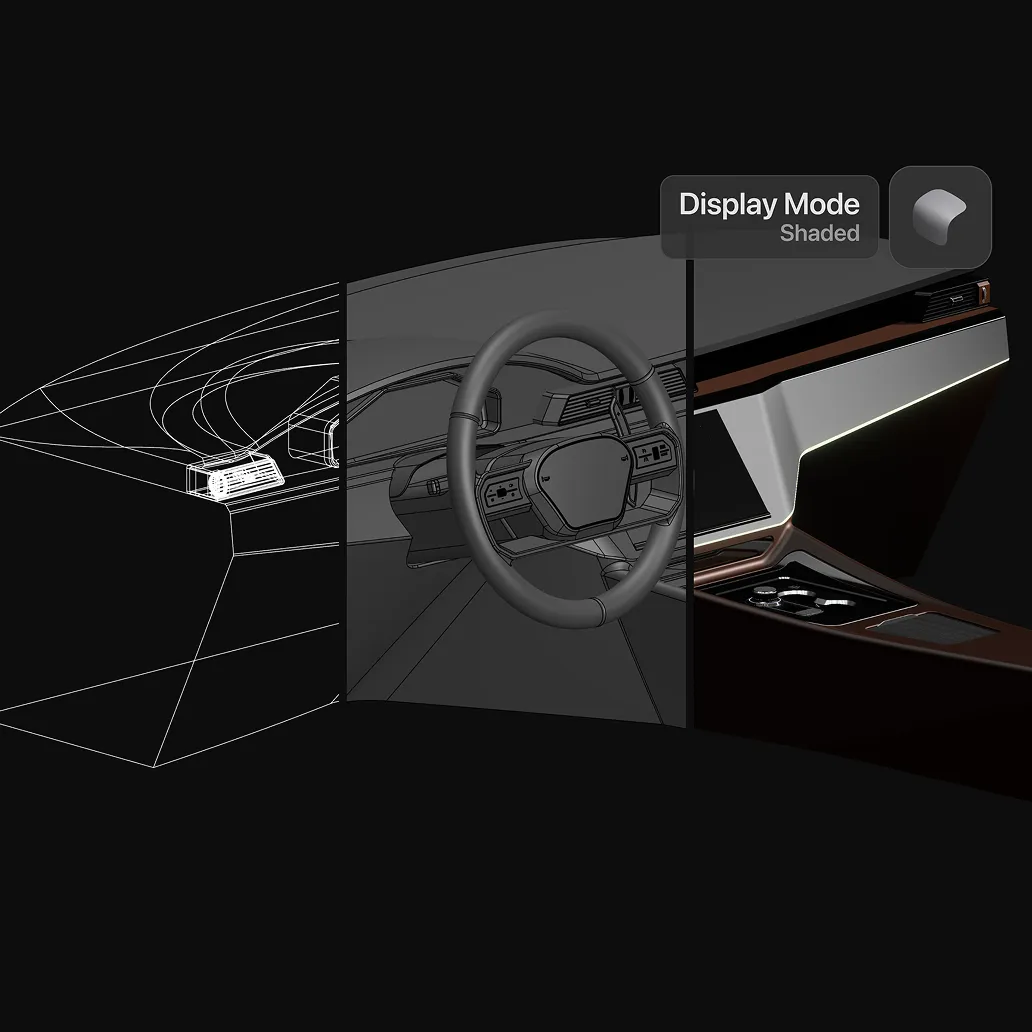
Display Modes let you switch between shaded, visualized, wireframe, and analysis shaders (like Zebra or Curvature Map) to inspect geometry in different ways. They’re useful for checking edge flow, evaluating continuity, or simplifying the scene when modeling or presenting. Open the Display Modes icon in the Modeling space to switch between the modes.
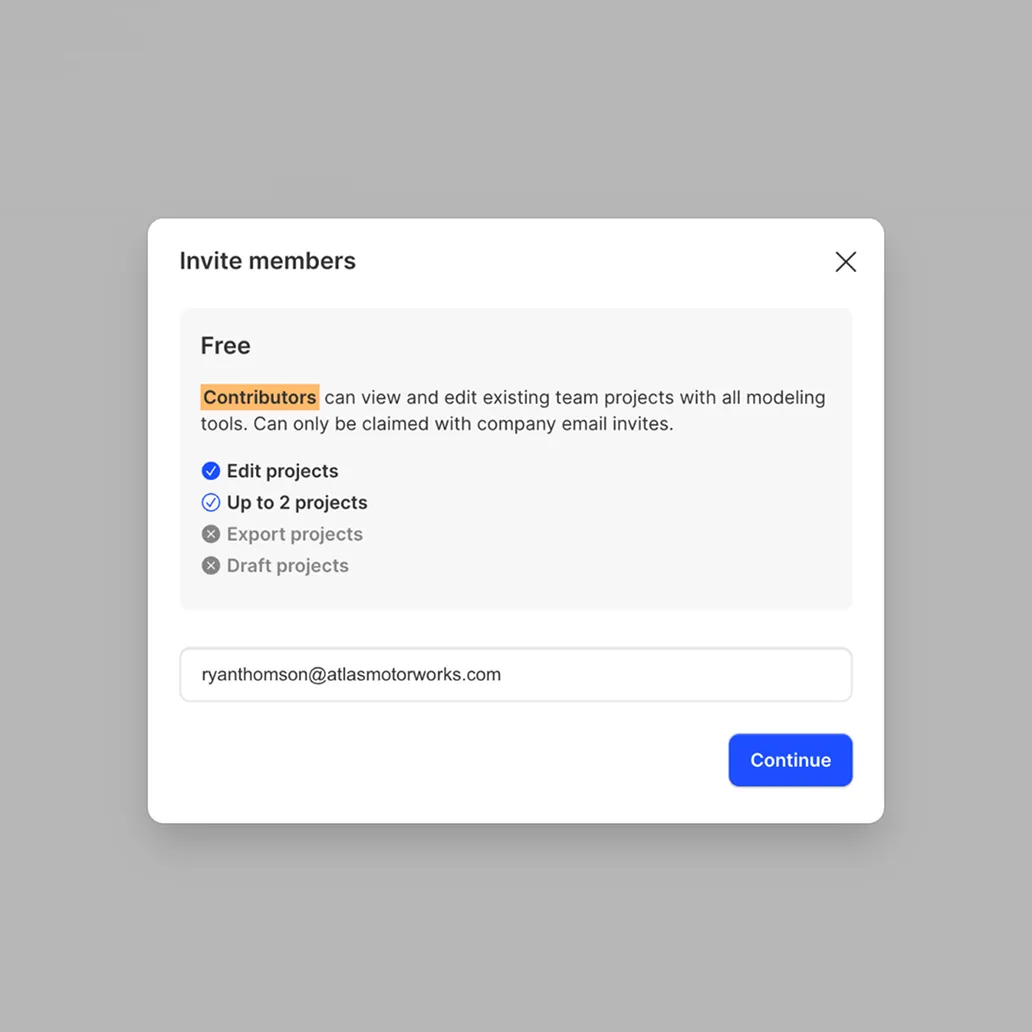
The Contributor role is a lightweight way to give people access to your team space without granting full Editor rights. Contributors can create and edit team projects with all modeling tools, but their seats can only be claimed via company email invites. Each team can have up to two Contributor seats, making it ideal for occasional collaborators or specialists.
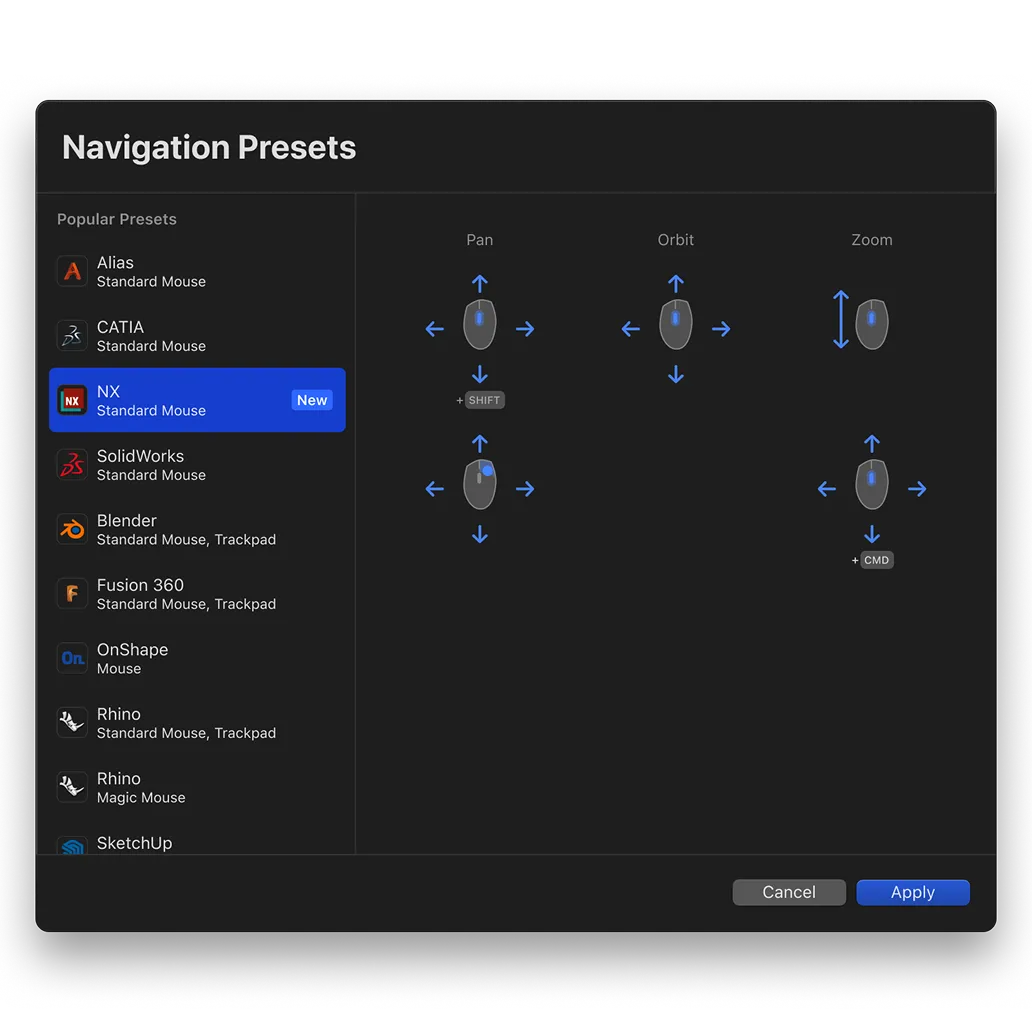
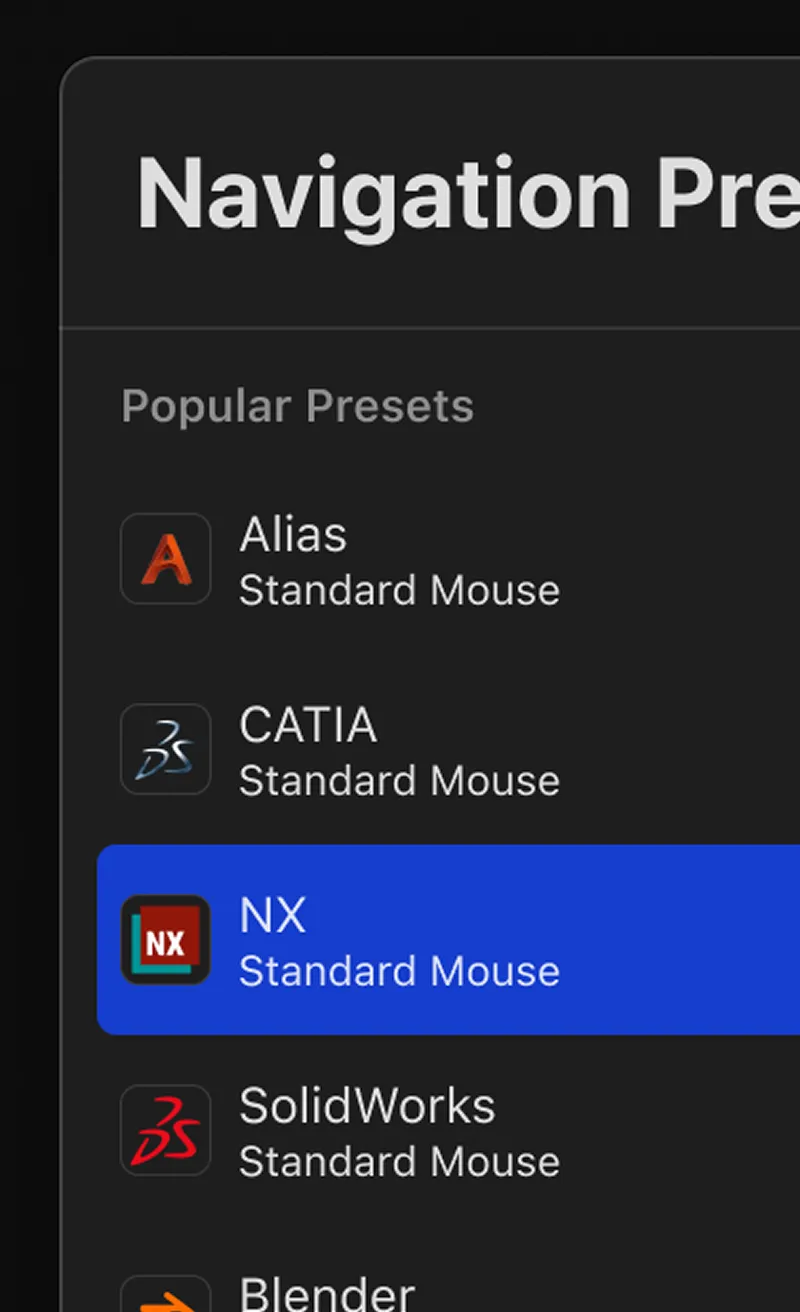
CATIA, NX, and Alias navigation presets make orbit, pan, and zoom behave like those systems. They’re ideal if you switch between tools and want consistent view controls across them. Go to Settings > Navigation Presets and pick the CATIA, NX, or Alias profile that matches your usual setup.