
If you’re a beginner interested in learning CAD, or just want a program with a low barrier to entry, you’ve got quite a few easy CAD options to choose from. But not all are created equal.
It can be hard to know where to start, because CAD software has a reputation for being difficult to use. Many programs require weeks or months of training to get comfortable with the basics. Oftentimes, ease of use comes at the expense of power and precision, though that’s not always the case.
Adding to the challenges, high-end CAD systems like CATIA, Creo, and NX typically run on heavy-duty computer hardware, and licensing costs are thousands of dollars. That makes them largely inaccessible for those who are looking to learn computer-aided design or only use it occasionally.
Depending on what you want to achieve, the options below can help you get started with 3D modeling for personal or professional use.
- Shapr3D: Best for CAD users at all levels
- Onshape: Best for easy cloud collaboration
- Autodesk Fusion (formerly Fusion 360): Best for teams who need CAM and PDM
- SOLIDWORKS: Best for complex manufacturing processes
- Tinkercad: Best for simple 3D designs
- FreeCAD: Best for budget-conscious, open-source enthusiasts
- Sketchup: Best for quick conceptual design
How we came up with our list
We conducted research and took a look at G2 reviews and ratings to give you our list of the easiest CAD software.
Since our focus here is on ease of use, accessibility and user experience were top considerations. We didn’t include software that is overly complex or has special system requirements.
This list also focuses on 3D CAD, so beginner software that only offers 2D CAD (like QCAD or LibreCAD) isn’t included.
Next, let’s take a look at the most important factors to consider when choosing CAD software (or jump directly to our list here).
Key factors to consider in beginner-friendly CAD software
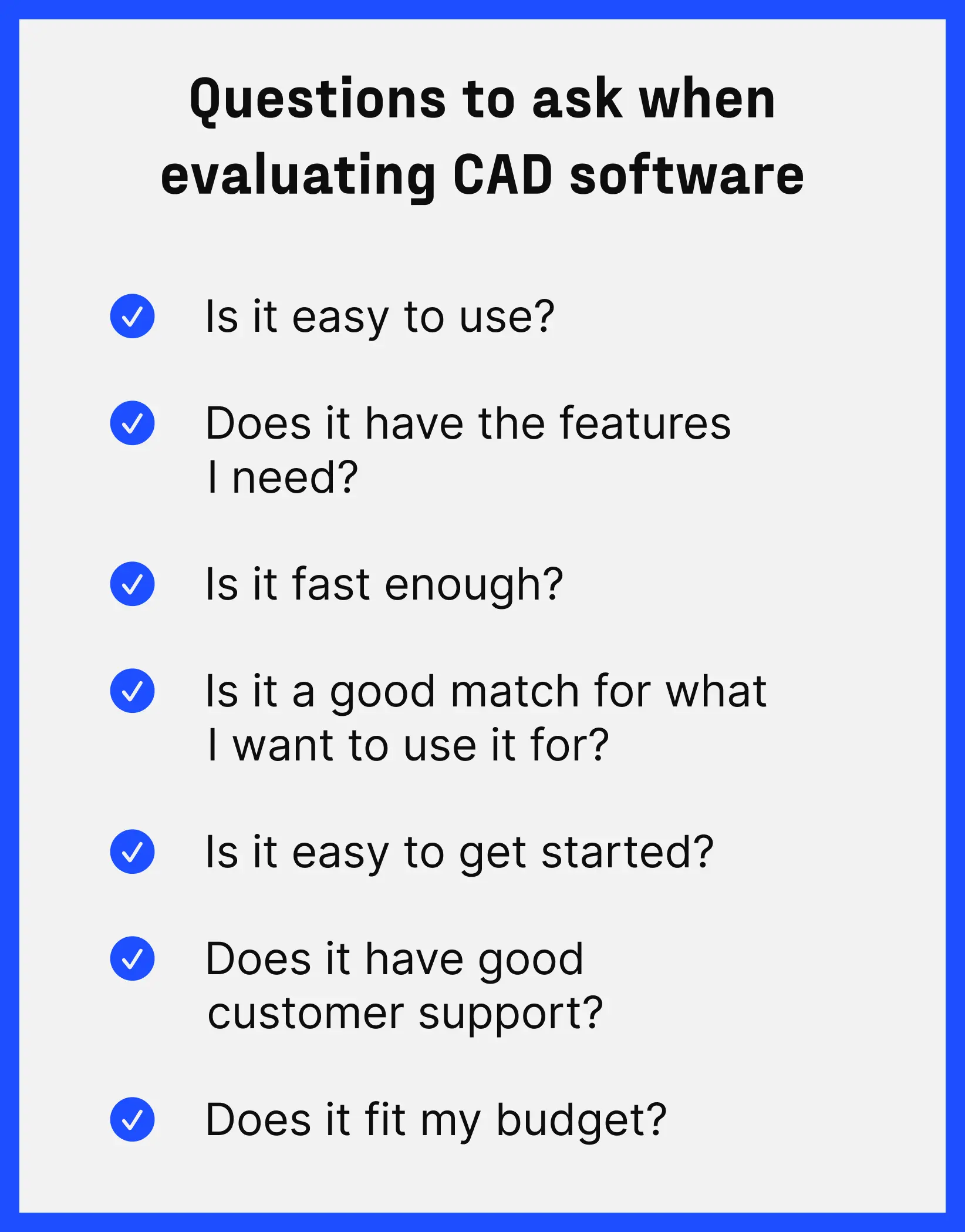
If you're just starting to evaluate your options, here are a few things to consider:
Ease of use
The most important thing to consider as a new CAD user is whether the software you’ve chosen is easy to use. For many people, user interface (UI) is a key part of that experience.
An intuitive UI guides you toward certain features or next steps or requires very little instruction or training, which makes the software easier to learn. An intuitive experience is also helpful if you’re not a frequent CAD user, because you don’t have to use it for hours a day to retain your skills.
In contrast, a software with a steeper learning curve might pack its UI with buttons, or bury commonly used features within submenus that take five clicks to get to.
Easy-to-use software might also have built-in tutorials or instructions to help you navigate and find important features.
Features and functionality
As with any software, you’ll want to take a good look at features when comparing CAD systems. More features doesn’t necessarily make a CAD system better — it all depends on what you’re looking to do.
All of the CAD solutions we reviewed have basic modeling functions, like additive and subtractive operations. Some offer parametric modeling, which allows you to adjust dimensions without breaking your model. Others offer direct modeling, which allows you to change the geometry intuitively by pushing and pulling to tweak the model. Both can be important depending on your use case.
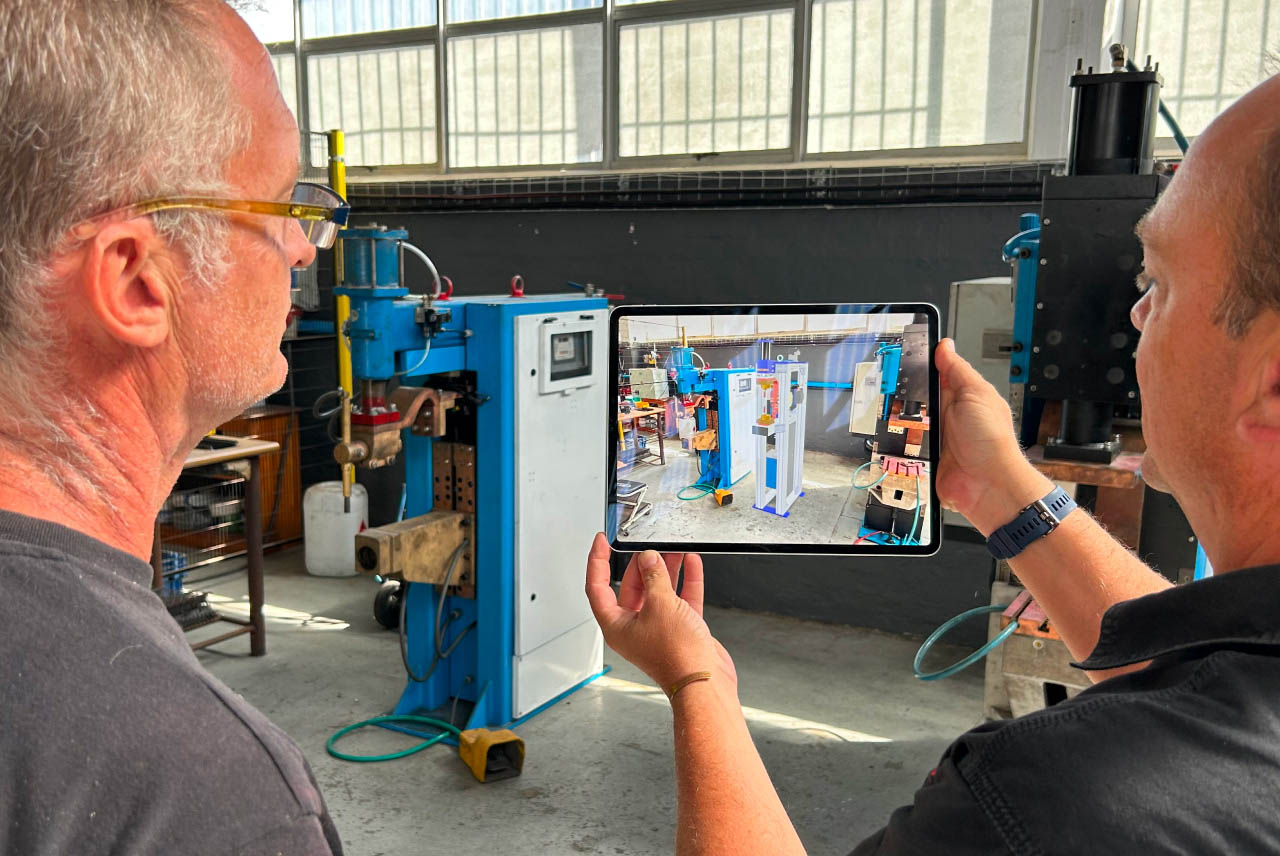
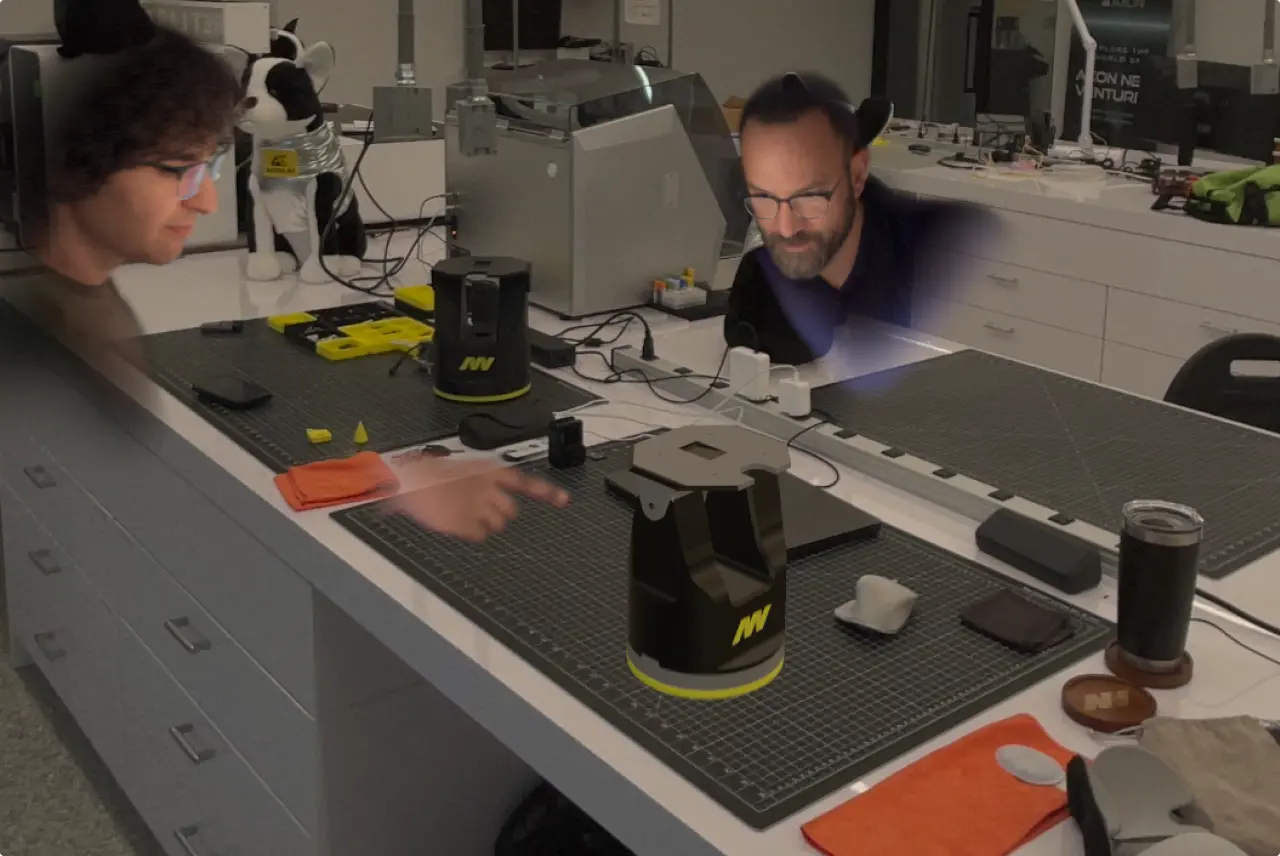
If collaborating with team members is important to you, look for CAD software with collaboration and sharing features, like cloud sync, review links, real-time editing, and augmented reality (AR) reviews.
Performance
Many CAD systems are notoriously slow. How does yours measure up? Read reviews to see which systems are known for crashing or lagging.
For browser-based programs, you may want to consider whether you have a reliable internet connection, since you won’t be able to access designs or model without it.
Use case fit
Do you want to build a model for 3D printing? Make sure your CAD software can export a file format that is compatible with your slicer, like STL or 3MF. You should also choose a software that guarantees watertight designs, otherwise your model might not print correctly.
Want to create renders for sales presentations or visualize your model with different materials, without having to use a separate program? Look for CAD that has these features baked in.
Do you want to design quickly for rapid prototyping? Make sure your CAD has an intuitive interface, supports direct modeling that allows you to push and pull surfaces, and works with accessories like an Apple Pencil or 3DConnexion SpaceMouse to speed up your work.
Installation and setup
Beginners may not want to deal with a CAD program with special hardware requirements or difficult setup. Look for software that’s browser-based (no download needed) or that is known for being easy to install and set up on your system of choice, whether it’s Mac, Windows, or the iPad. Some programs run on multiple operating systems, while others are only available on Windows or the web.
Customer support
Customer service is important for any software-as-a-service (SaaS) product, and CAD is no different. Read reviews from real users on G2 or other trusted platforms to see whether they can easily get the support they need and reach someone from the company to help them with issues.
Cost
The cost of CAD software can vary widely, from totally free, open-source software to licenses that cost thousands of dollars per year.
Take advantage of free versions and trials, even if they have limited functionality, to see which user experience you prefer. If you like the program and discover you need its full suite of features for your CAD project, then you can consider upgrading if the cost makes sense for your use case.
Also take note that many companies offer free or reduced-cost licenses for students and educators.
Easiest CAD software at a glance
The table below compares the best CAD software for beginners based on use case, features, platforms, and pricing.
7 easy CAD software options
*Free or special pricing available for students and/or educators.
Shapr3D for CAD users at all levels
G2 rating: 4.8/5 stars
Best for: CAD users at all levels
Pricing: Free Basic plan, paid plans start at $299/year*
Key features: Intuitive interface, augmented reality (AR) reviews, visualization tools, parametric and direct modeling, cloud collaboration, AI-generated rendering, 2D technical drawings
Pros: Built-in tutorials, quick onboarding, compatibility with other Parasolid-based CAD systems, easy-to-learn
Cons: Limitations on free plan, struggles with organic shapes
Shapr3D is a multi-platform CAD software and design tool that delivers precise parametric 3D modeling and an intuitive user experience, making it a top choice for those new to CAD.
Users can explore concepts freely using direct modeling. At the same time, they’re working with geometry that reflects real constraints, so models are more reliable and designs are actually manufacturable.
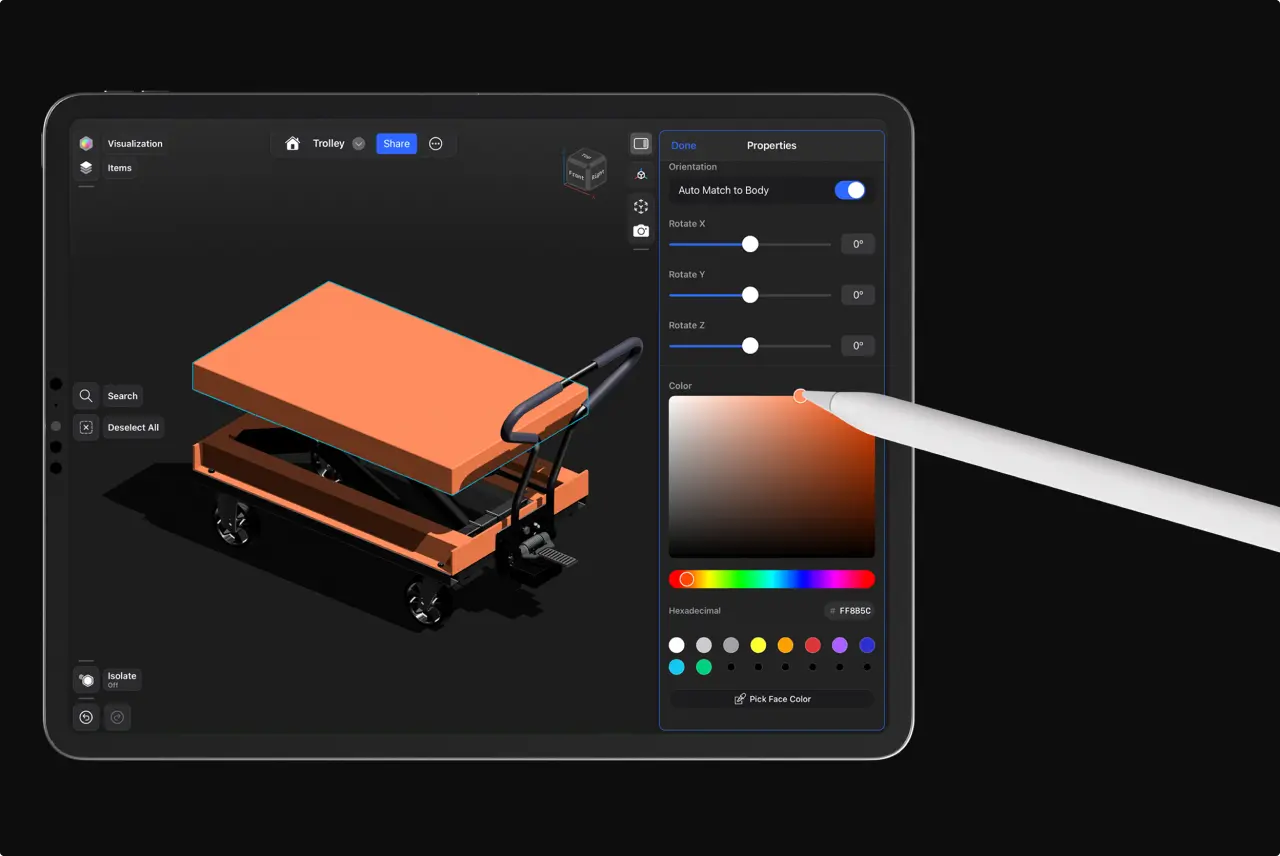
Built natively for iPad with the Apple Pencil, Shapr3D also has native support for Mac and Windows operating systems, meaning you can create, view, and edit designs on your preferred platform.
While Shapr3D has a robust feature set that makes it applicable for manufacturing, it’s also known for being easy to use. Shapr3D customers say the learning curve is low, with built-in tutorials and hands-on training videos helping new users get set up quickly.
- At Axon, a U.S.-based public safety technology company, employees were able to learn Shapr3D within a day, and were proficient in a week.
- At 3M’s Kempten, Germany site, maintenance supervisor Marcel Waibel said, “I just hand over the iPad and say, ’Do the clamp holder tutorial.’ In 20 minutes, they’re up and running.”
This makes it ideal for those who are just getting started with CAD, don’t have formal CAD training, or are exploring 3D design for hobbies like 3D printing or woodworking.
Onshape for easy cloud collaboration
G2 rating: 4.7/5 stars
Best for: Easy cloud collaboration
Pricing: Free plan (non-commercial use), paid plans start at $1,500/year
Key features: PDM, parametric modeling, 2D technical drawings, cloud sync, browser based, versioning, assemblies
Pros: No installation required, real-time collaboration, cloud data management
Cons: Designs are made public in free version, paid plans are cost-prohibitive, requires internet connection
Onshape is a cloud- and browser-based CAD and PDM (product data management) platform. It works well for collaborative teams, allowing multiple designers to work on one design at the same time using the software’s branching and merging capabilities. The web-based platform eliminates setup barriers, but requires users to be connected to the internet to use it.
Onshape users say simple modeling is fairly easy on the software’s clean interface, but more complex models or assemblies may take some time to master. An Onshape Fundamentals pathway on the company’s Learning Center takes almost 12 hours to complete, and an Associate certification for users to demonstrate their proficiency requires 35-50 hours of Onshape experience.
Autodesk Fusion (formerly Fusion 360) for teams who need CAM and PDM
G2 rating: 4.5/5 stars
Best for: Teams who need CAM and PDM
Pricing: Free plan (personal use), paid plans start at $680/year*
Key features: CAD, CAM, CAE, PCB, PDM, cloud collaboration, parametric assemblies
Pros: Full engineering workflows, all-in-one environment
Cons: May be too complex for beginners and light CAD users
Autodesk Fusion (formerly known as Fusion 360) bills itself as an integrated CAD, CAM, CAE, PCB, and PDM system. This makes it ideal for teams who need a full engineering workflow, but its breadth of features might be considered overkill for single users, beginners, and small businesses.
G2 users like its cloud collaboration features and all-in-one environment for product teams. However, many G2 reviews reference a high learning curve (especially when switching from other CAD software) and difficulty with creating large assemblies. Autodesk offers certification, which typically requires 150 hours of Fusion software experience.
The high cost of plans may be prohibitive for smaller teams and companies. There is a free plan for personal use, but functionality is limited.
SOLIDWORKS for complex manufacturing processes
G2 rating: 4.4/5 stars
Best for: Complex manufacturing processes
Pricing: Makers plan (personal use) starting at $48/year, Business plans starting at $2,820/year*
Key features: CAD, CAM, CAE, PCB, PDM, cloud collaboration
Pros: Robust feature set, integrations with third-party apps
Cons: Limited to desktop and Windows OS
SOLIDWORKS is considered an industry standard in mechanical engineering and product development. It can handle complex assemblies and has a broad feature set for engineering, including CAE.
It is considered by many in the industry to be relatively easy to use, according to G2 reviews, making it ideal for professional CAD users. Beginners without CAD experience may struggle with learning its more advanced features.
Similar to Autodesk Fusion, the high price tag for business plans may be a barrier for smaller teams and companies. However, personal users who need a complex CAD system may find a fit with SOLIDWORKS’ Makers plan, which is web-based.
Tinkercad for simple 3D designs
G2 rating: 4.5/5 stars
Best for: Simple 3D designs
Pricing: Free
Key features: Drag-and-drop functionality, video tutorials
Pros: Clean, user-friendly interface, pre-existing 3D shapes
Cons: Only available as a web app, no parametric modeling
Tinkercad is a great introduction to 3D design, especially for children, students, and those without any 3D modeling experience. It allows you to drag and drop simple shapes like building blocks, move them around, and adjust dimensions by inputting values.
While G2 users love Tinkercad’s user-friendly interface, they run into limitations with more complex models and find that some circuit components are lacking. This software is best suited for students learning the basics of CAD, not complex mechanical models or detailed assemblies requiring an understanding of parametric modeling.
FreeCAD for budget-conscious, open-source enthusiasts
G2 rating: 4.1/5 stars
Best for: Budget-conscious, open-source enthusiasts
Pricing: Free
Key features: Parametric modeling, Workbenches
Pros: Strong community support
Cons: Open-source model doesn’t offer the same robustness as other programs
FreeCAD is an open-source parametric CAD platform. If you’re a fan of open-source software, it has many benefits: a strong community, extensive documentation, no licensing fees to worry about, and the ability to contribute to the product.
FreeCAD groups tools into Workbenches based on the tasks they’re related to. For example, the Draft Workbench has 2D tools and basic 2D/3D CAD operations. The BIM (building information modeling) Workbench contains tools for working with architectural elements.
G2 reviews say that the interface is not as intuitive as some other 3D CAD programs, making it difficult for beginners. Inconsistencies, bugs, broken features, and reports of frequent crashing can also be frustrating for new users to deal with.
Sketchup for quick conceptual design
G2 rating: 4.5/5 stars
Best for: Quick conceptual design
Pricing: Free plan (limited functionality), Paid plans start at $129/year*
Key features: Push-pull modeling, simple UI, library of premade 3D models
Pros: Ease of use, quick modeling, web and desktop versions
Cons: No parametric functionality, models are not true solids
Sketchup is an easy-to-use platform based on push-pull modeling, which means you can grab and pull surfaces to turn 2D shapes into 3D forms. That makes it an extremely approachable software to learn, and beginners can get started modeling quickly.
Sketchup also has a library of pre-made models, including furniture and fixtures. You can easily mock up a room layout, making it ideal for interior designers. However, G2 reviews note that Sketchup’s strength is in quick concepting, not manufacturability.
Resources to help you get started with CAD
There are a wealth of resources out there to help you learn 3D design, specifically for your CAD program of choice.
Visit the CAD company’s website and take a look around to see what resources are available to support your learning:
- Video tutorials
- “Getting started” user guides
- Learning center with guided courses and training
- “How to” blog articles, tips, and tricks
- A robust support section with well-organized and detailed help articles
- A chatbot to help respond to common questions
- A clear way to contact customer support, whether it’s through email, live chat, or a phone number
- An active online forum with employees designated to respond to questions
Popular CAD platforms might also have external support that you can tap into, like online communities on Reddit or Facebook. These may not be directly managed by the company but have a knowledgeable and helpful user base to answer basic questions or guide you in the right direction.
YouTube is another go-to place to find helpful tips and inspiration. Go to the company’s page for official videos, or search for tutorials created by users.
CAD that combines ease of use and precision
For many CAD solutions, ease of use is a tradeoff for power and precision. Simple CAD software can lack those advanced feature sets and abilities that come with higher-end CAD.
Shapr3D combines ease of use with precision that’s powered by Siemens Parasolid, the industry gold standard for CAD geometry. That means you get the best of both worlds: a beginner-friendly, intuitive interface that allows you to create precise, manufacturable models for 3D printing, woodworking, and tooling.
Ready to get started? Download Shapr3D for free to see it in action.
__________
FAQ
Which CAD tool is best for 3D printing beginners?
If you’re just starting out with 3D printing, look for a tool that combines ease of use with capabilities like parametric modeling, which will allow you to tweak designs easily. Look for a CAD solution that allows you to export to STL, 3MF, or OBJ formats, which are most commonly used for 3D printing.
While a tool like Sketchup is known for its intuitive modeling, G2 users have said that 3D printing solids is a bit more difficult. Tinkercad, another popular beginner software, may work for printing simple objects, but more complex models might require the precision of CAD programs like Shapr3D or Autodesk Fusion.
How long does it take to learn CAD software?
Learning CAD software can take anywhere from a few hours to a few weeks, and some require months of regular usage to become proficient.
Shapr3D is known for having a quick ramp-up time with its built-in onboarding flow and intuitive modeling experience. A G2 comparison of Shapr3D, Onshape, Autodesk Fusion, and Sketchup shows that Shapr3D has the highest “Ease of use” rating of 9.4 out of 10. Sketchup and Tinkercad are also praised for their ease of use.
What are the limitations of free versions of popular CAD tools?
Many CAD tools, like Shapr3D, Onshape, Autodesk Fusion, and Sketchup, operate on a freemium model, giving you access to the software for free with limited functionality.
- Shapr3D: The Basic (free) plan gives you up to two projects and limited support for different file formats if you want to import and export. You have access to all the modeling tools and AR viewer, plus limited or trial access to design tools like AI Generative Render and visualization.
- Onshape: This free plan is intended for non-commercial use. It gives you access to Onshape’s CAD tools and real-time collaboration, but all projects created on the free plan are accessible to the public.
- Autodesk Fusion: Also for non-commercial use, Autodesk Fusion’s free plan includes cloud-based design and modeling tools. It has limited file types for import/export, limited CAM functionality, and limited 2D drawing.
- Sketchup: Sketchup’s free plan is for educational or personal use and is only available on a web browser. More advanced tools aren’t available, and support for file formats is also limited.
How do browser-based CAD tools compare to desktop versions for beginners?
Browser-based CAD tools are accessible from any supported device with an internet connection. You can simply log on and access your models from anywhere as long as you have reliable internet, making it an easy and flexible option for on-the-go users. Browser-based CAD is also helpful for real-time collaboration.
Desktop versions give you the flexibility to work offline, and are generally faster with more complex models and larger assemblies.
Editor’s note: This article was originally published in October 2025 and was updated in January 2026 for accuracy and comprehensiveness. Pricing and feature information is valid as of January 2026.