
First, the baseline: which PCs run Shapr3D
Two requirements:
- Windows 10, version 2004 or later
- A CPU with AVX2 support. In practice, that means an Intel Core processor from the 8th generation (2017) onward, or an AMD Ryzen. ARM processors are supported separately.
That's it, and it covers every form Windows comes in: desktops, laptops, 2-in-1s, and Windows tablets. One note for tablet buyers: some Windows tablets run on ARM processors, which are supported separately, so check our compatible devices page for your exact model. Android tablets and Chromebooks are not supported.
One tip before you spend anything: if you already own a PC from 2017 or later, download Shapr3D for Windows for free and try it on your actual projects. You may not need a new machine at all.
Shapr3D runs on your PC, not in the cloud
Every modeling operation runs locally. Extrude a sketch, fillet an edge, or import a STEP file, and it's your PC's processor and memory doing the work, not a server.
The cloud's only job is sync: your projects stay up to date across your PC, iPad, and Mac.
That's why Shapr3D works with no internet connection at all, on a shop-floor PC or a laptop in the field, with no lag between input and result. It's also why the PC you choose directly determines how fast Shapr3D feels.
Simple or complex: what kind of work will you do?
File size tells you little about performance. A small file can be heavy, and a large one can be light. What makes your PC work hard:
- Number of bodies in your design
- Number of faces. Designs with complex, curvy surfaces can have a lot of faces.
- Number of sketch curves. On import, Shapr3D converts planar curves into editable sketches, and lots of curves means more work.
So before comparing spec sheets, decide which profile fits you:
Simple use case: You design your own parts from scratch. Brackets, enclosures, fixtures, furniture, parts for 3D printing. A handful of bodies, assemblies under roughly 20 parts. Any supported PC handles this comfortably.
Complex use case: You import large files from other CAD systems, work with hundreds of bodies, complex surfaces with thousands of faces, or lots of curves. This is where CPU, RAM, and GPU start to matter.
The criteria that matter
1. The CPU: single-core speed, not core count
Every modeling action asks your PC to recalculate your design's exact geometry. These operations depend mostly on how fast one core is, not on how many cores you have. A current mid-range Core i5 or Ryzen 5 beats a years-old high-end chip with twice the cores.
So skip the core-count arms race. Buy the newest generation you can afford, in a mainstream tier. The savings go further in RAM.
2. RAM: the ceiling on model complexity
RAM determines how much geometry your PC can hold in memory at once. When memory runs low, imports slow down, and a very large import can fail with an out-of-memory error.
Shapr3D's import options help: prioritize speed over geometry repair and large files import up to 70% faster, including some that previously failed on low-memory machines. Still, enough RAM is the simpler fix. And unlike most other platforms, many Windows desktops and larger laptops let you add RAM later. If you're buying a thin laptop, check whether the memory is soldered, because then the amount you buy is the amount you keep.
Our official guidance:
- Simple use case: 16GB
- Complex use case: 32GB
3. The GPU: integrated is fine, no workstation card needed
Here's where Shapr3D breaks with CAD tradition. For the simple use case, the integrated graphics in a current CPU are enough. No dedicated card, no certified drivers, no workstation pricing.
For the complex use case, a dedicated GPU keeps the viewport smooth on large models. The bar is modest: an NVIDIA 10 series or later, an AMD RX 5000 series or later, or an Intel Arc card, with 4GB of VRAM or more. A mid-range gaming GPU clears it with room to spare.
4. Touch and pen support
Windows is the one desktop platform where you can touch the screen. Shapr3D supports pen and touch input on Windows tablets, convertibles, and touchscreen laptops, so you can sketch directly on the display and orbit with your fingers, then switch to mouse and keyboard for precision work. A Windows tablet with a pen is the closest thing to the iPad experience that stays in the Windows world: detach the keyboard and sketch on the shop floor, dock it at your desk and it's a workstation.
Wacom tablets are supported on Windows, too. And if you spend all day in 3D, a 3Dconnexion SpaceMouse lets you orbit with one hand while modeling with the other.
5. The screen: your workspace
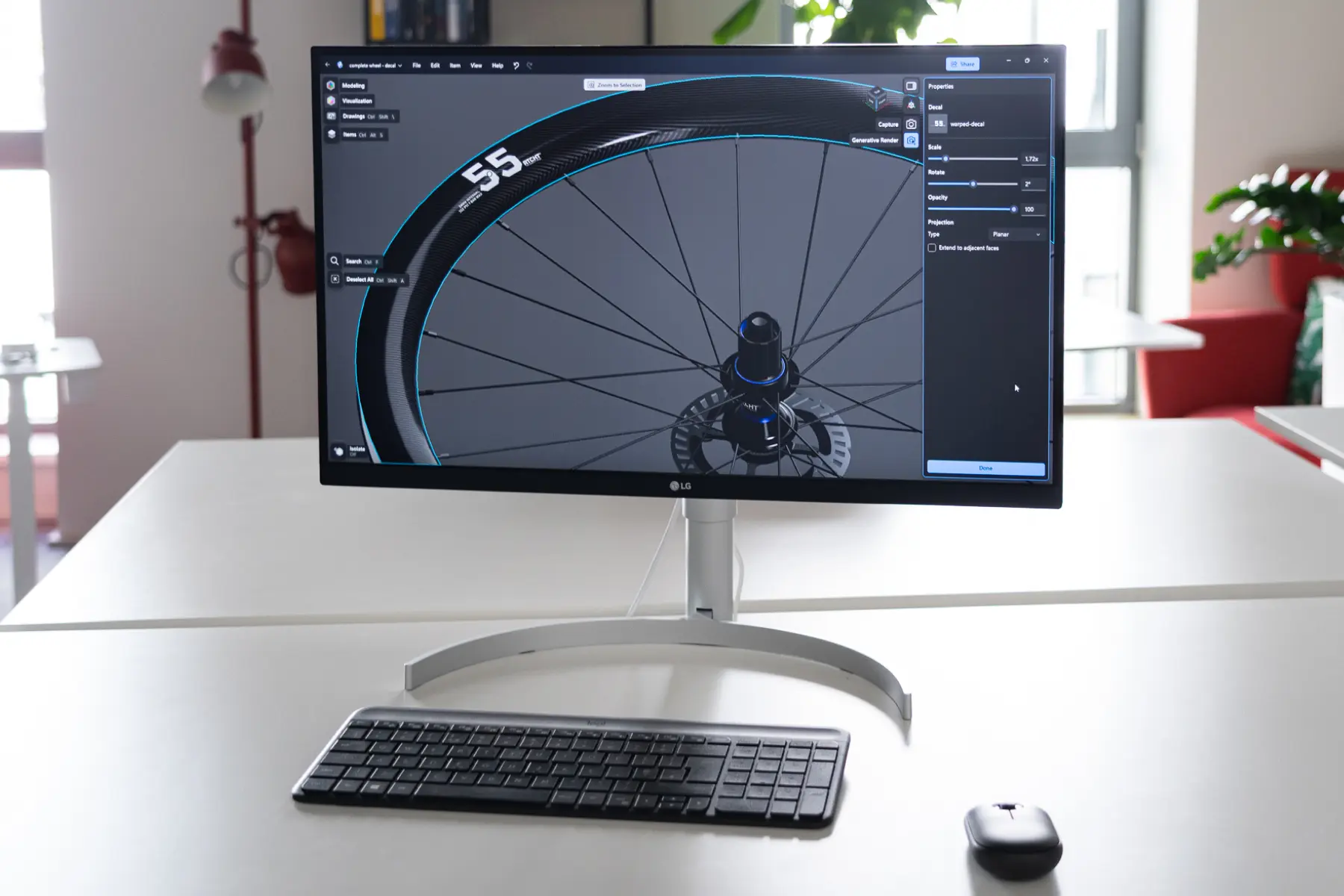
Your screen holds your canvas, toolbar, and Items Manager at once, so more screen area means more room to work. On Windows this is an easy problem to solve: every PC drives external displays, and monitors are cheap. A modest laptop plus a 27" monitor at your desk beats an expensive laptop alone. For a desktop, one large monitor serves CAD better than two small ones.
6. Storage: an SSD, and the base size is enough
Shapr3D design files are small, and projects sync automatically through Shapr3D's cloud across your devices. Base storage is enough. The one thing to insist on is an SSD rather than a hard drive, which any current PC worth buying already has.
7. Laptop, desktop, tablet, or 2-in-1?
This is about your workflow, not performance. A laptop gives you CAD at the client's site, in the workshop, on the couch. A desktop gives you more performance per dollar and room to upgrade. A tablet or 2-in-1 adds pen and touch, and docks into a desktop setup when you're back at your desk.
Recommendations by how you work
Getting started, learning CAD, or designing for 3D printing on a budget: the PC you already own, if it's from 2017 or later. Try Shapr3D for free on it first. Buying new, a mainstream laptop with a current Core i5 or Ryzen 5 and 16GB of RAM covers the simple use case well.
The sweet spot for most people: a 14" to 15" laptop with a current mid-range CPU, 16GB of RAM, and an SSD. Integrated graphics are fine. Add a monitor at your desk.
The complex use case: a desktop with the newest-generation CPU you can afford, 32GB of RAM, and a dedicated GPU with at least 4GB of VRAM. A performance laptop with the same specs works if you need to carry it.
If you want to sketch with a pen: a Surface-class 2-in-1 with pen support, or a Wacom tablet next to the PC you already have.