Download Shapr3D.
Download in seconds and get to your first model in 15 minutes.
Available for iPadOS, macOS, and Windows, and fully supported on Wacom tablets.

Sketch precise 2D shapes. Apply constraints to lock in how your model behaves. Sketching and constraint tools in Shapr3D give you maximum control to draft and edit, quickly and accurately.
Create your geometry exactly how you want it using 2D lines, arcs, and shapes. Sketching is easy and precise with the Apple Pencil and iPad or traditional mouse. Adjust dimensions manually or type in exact values for the right fit.
Retain ultimate control over your model by fully defining sketches with constraints. Fully defined sketches are fixed, reducing errors by preventing accidental changes and locking in design intent.
Drag sketch elements to see a live preview of how your model will look, making iteration quick and simple. When you update one part, the rest of your model updates to follow your original design intent.
Shapr3D uses Siemens D-Cubed 2D DCM, the gold standard for precise 2D sketching and constraint solving, so you can be confident that your final product is ready for production.
Sketching allows you to define the shape and structure of your model in 2D before it becomes a 3D body. In Shapr3D, sketching is as easy as using a pen and paper, but comes with the precision of CAD.
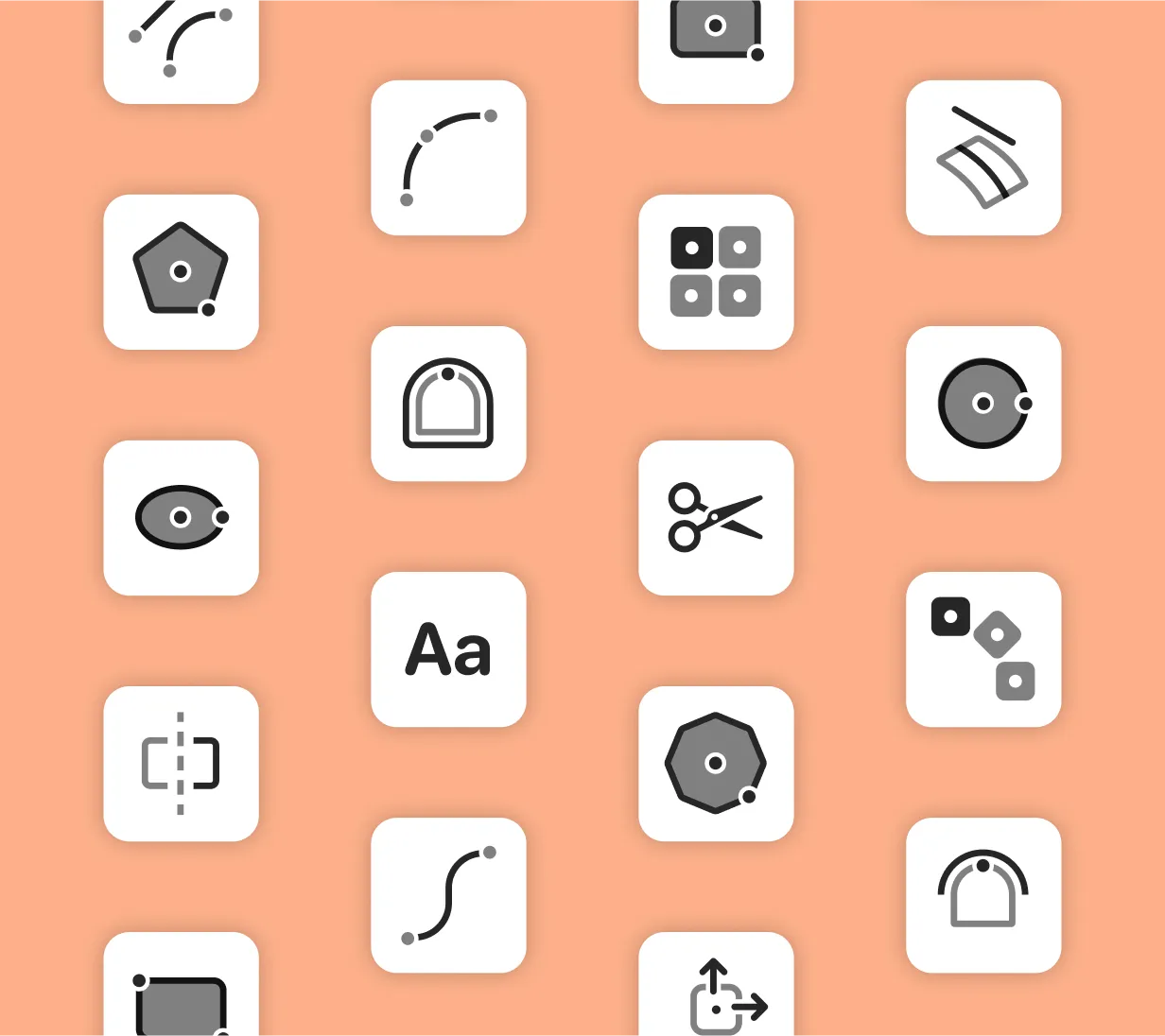
Create sketches with Line, Arc, Circle, Rectangle, Spline, Ellipse, and Polygon tools, and duplicate elements using Pattern or Mirror.
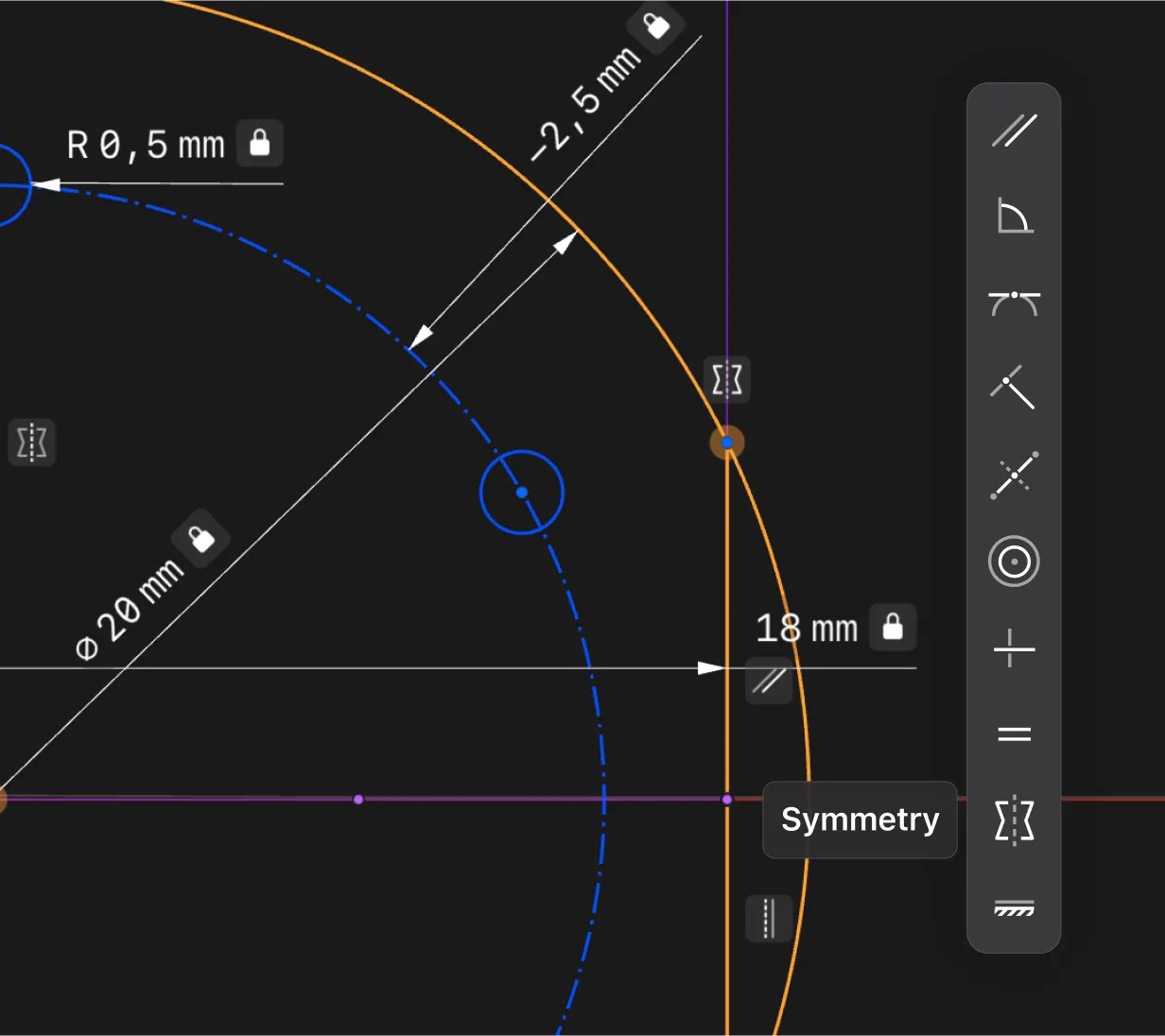
Constraints act as “rules” for your geometry to follow. Our constraints menu contains automatic and manual constraints that let you control how your model behaves. When applied, they preserve design intent by maintaining proportions and scaling your model while keeping elements positioned correctly.
Turn on Auto-constraining to have Horizontal/Vertical, Perpendicular, Tangent, and Coincident constraints applied automatically as you sketch, or turn it off for manual precision.
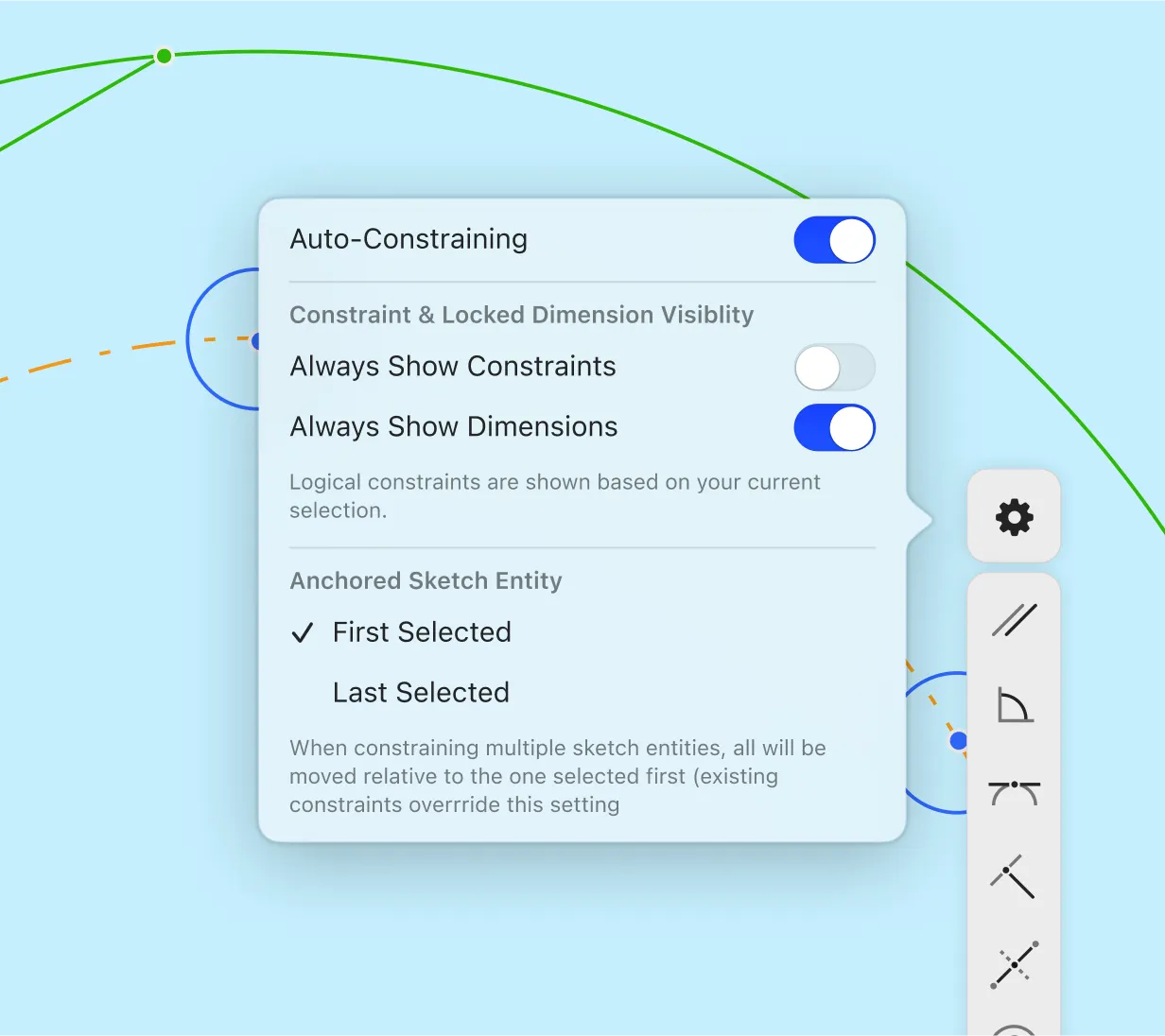
Shapr3D’s adaptive UI highlights only valid constraints for a selected sketch element, making it easier to see which rules you can apply.
Our industry-standard geometric constraint capabilities include:
Sets two lines relative to each other, either at the same continuous distance (parallel) or at a 90-degree angle (perpendicular)
Sets two lines relative to each other, either at the same continuous distance (parallel) or at a 90-degree angle (perpendicular)
Creates a relationship between a line and a curve,
or two curves, at a single point of contact
Fixes two points together
or one point on a line, curve, or arc
Connects an endpoint
with the center of a line
Makes two circles or arcs
share the same center point
Makes lines align horizontally
or vertically with the axes of the sketch plane
Makes multiple lines, arcs,
or circles the same size
Makes two elements behave as
mirror images on either side of a line
Shapr3D’s sketch tools and constraints make it easy to create and modify your 3D models. Try it free and get modeling in minutes.
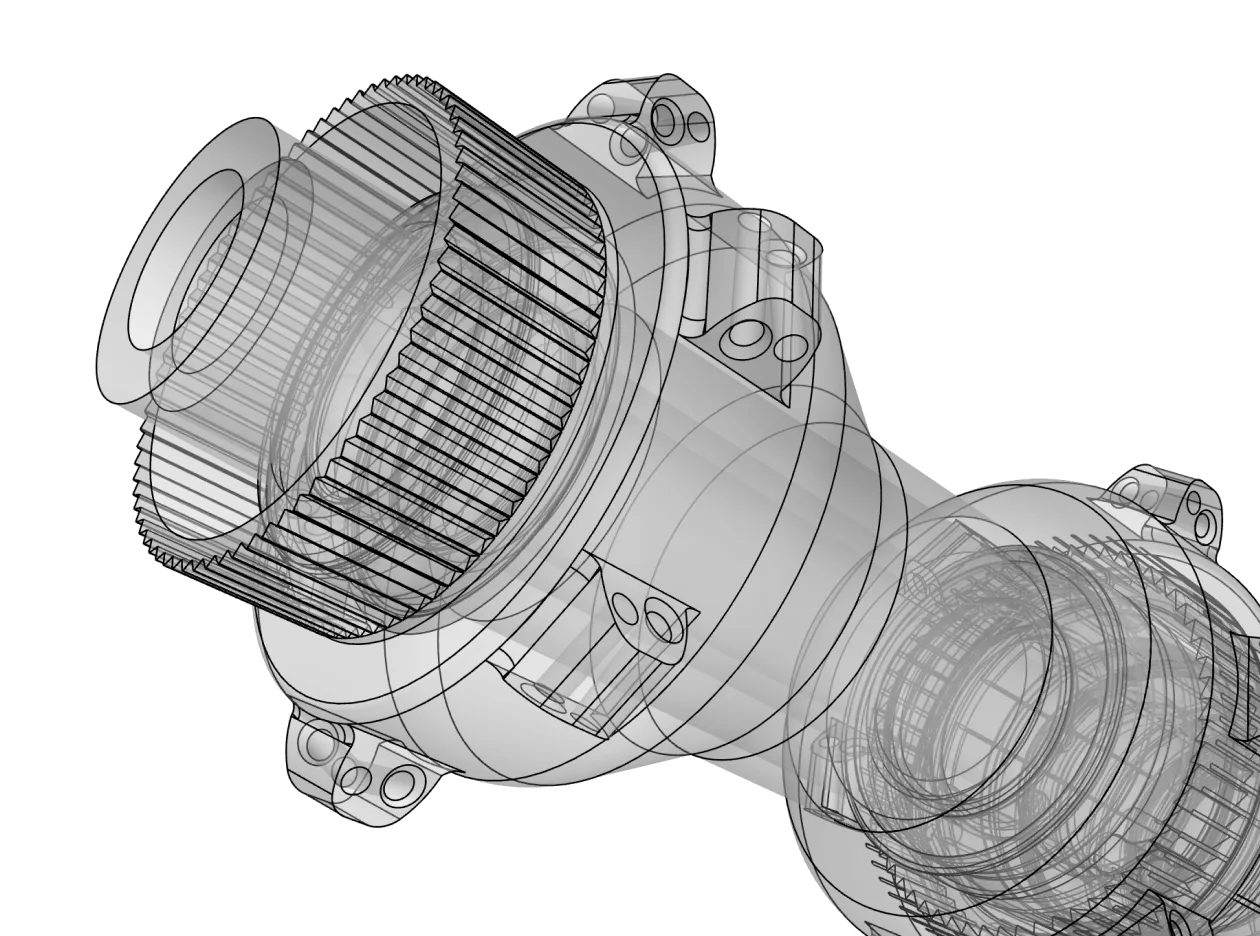
Constraints are like rules that you apply to different elements of your sketch or model. If you change one element that has a constraint applied, it will automatically change the related elements to follow the constraint. For instance, if you apply a perpendicular constraint to two lines and change the angle of one line, the other line will automatically update so that its relationship to the first line is at a right angle.
Visit our support center to learn more about constraints in Shapr3D.
A dimensional constraint is defined using numbers — for instance, you can set a dimensional constraint that your line should be 10mm, and the angle between two connected lines is 45 degrees.
A geometric constraint uses geometric rules to define the relationship between two elements in a sketch, which sets the behavior of those elements. Adding a horizontal constraint means that line must always stay horizontal. Applying a tangent constraint to a line and circle means they must touch at exactly one point.
A 2D CAD sketch is like the foundation of a 3D CAD model. You start by creating a sketch out of simple elements like lines, arcs, and shapes. From there, you can apply different modeling operations like Extrude, Loft, or Sweep to create 3D bodies.
Visit our support center to learn more about sketch tools in Shapr3D.
A CAD sketch is fully defined when there are enough dimensional and geometric constraints applied to it so that nothing can be accidentally moved or resized. Every line, endpoint, arc, or shape has rules applied to it that define it in relation to another.
In Shapr3D, a sketch is fully defined when all its edges are green. Any remaining blue edges are under-defined, meaning they lack constraints, can still be moved or rotated, or have at least one degree of freedom remaining.
When your sketch is under-defined, it has at least one degree of freedom. That means it does not have constraints applied to it and can still be moved, resized, or rotated without affecting anything else. In Shapr3D, these under-defined elements show up as blue.
An under-defined sketch can accidentally be moved or may behave unpredictably when you make edits to other parts of your model. Always aim for fully defined sketches so you can be sure your model is manufacturable and updates accurately.
If your sketch is over-defined, that means it contains conflicting rules or constraints. For instance, you can’t apply both a parallel and perpendicular constraint to the same two lines, because both rules cannot be applied at the same time. You will have to remove one of the constraints in order to satisfy the other.
Yes, Shapr3D has an “Auto-constraining” feature that can be turned on in your Constraint settings. It automatically applies basic constraints like Horizontal/Vertical, Perpendicular, Tangent, and Coincident to your sketch.
Use automatic constraints when speed is important, for quick concepting and design iteration. Use manual constraints with precision matters and you want to be able to control every aspect of your model.
Yes, Shapr3D supports history-based parametric modeling. Constraints act as parameters or rules to follow, defining the relationships that allow your model to update based on a change in your design history.
