Download Shapr3D.
Download in seconds and get to your first model in 15 minutes.
Available for iPadOS, macOS, and Windows, and fully supported on Wacom tablets.
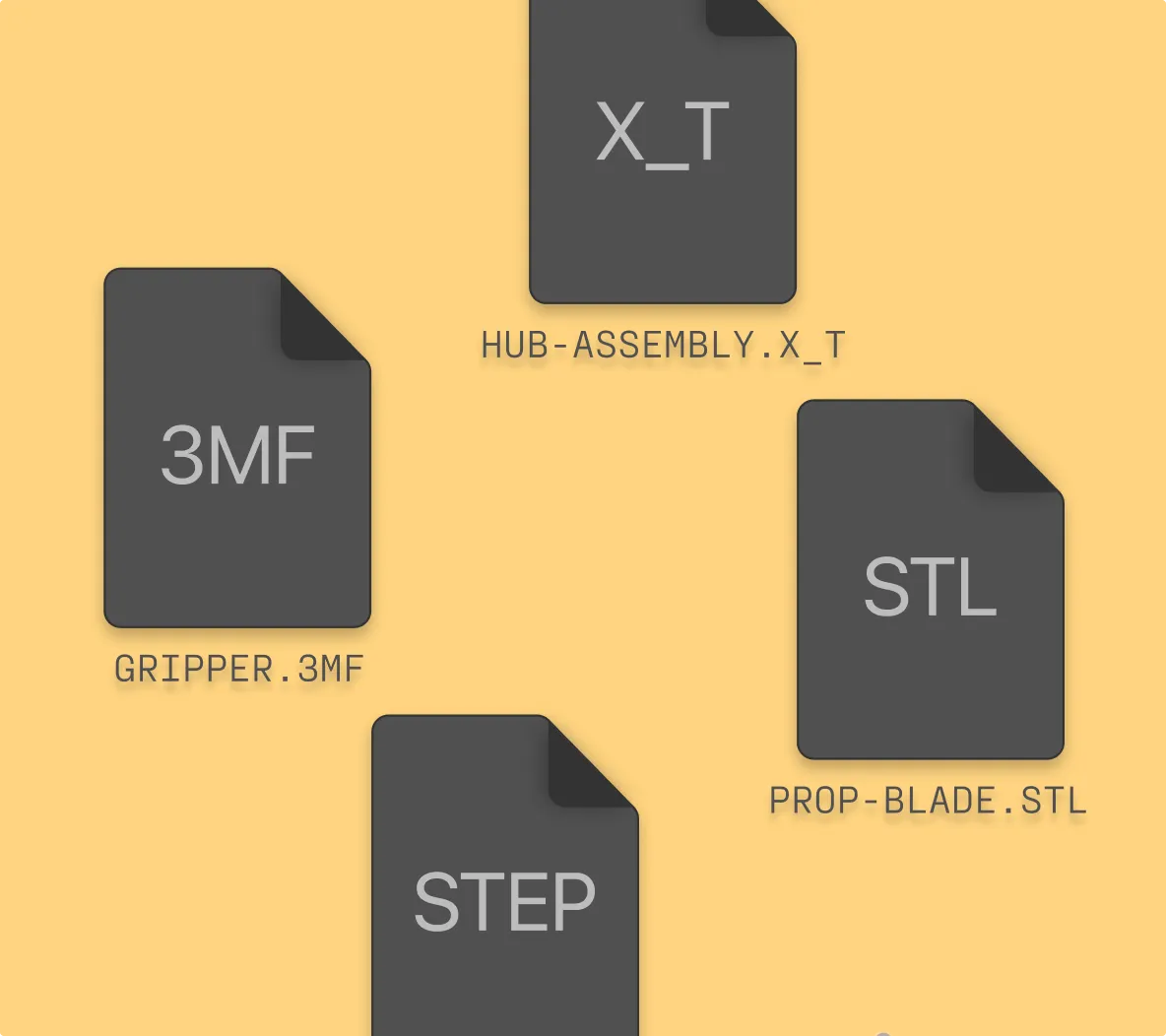
Whether you’re importing designs from other CAD software or exporting files for 3D printing or manufacturing workflows, Shapr3D supports a variety of industry-standard CAD file types.
Shapr3D is built on the Siemens Parasolid kernel, so you can easily export to Parasolid formats like X_T or X_B without losing geometry data.
Shapr3D’s Parasolid engine means you can export precise, watertight geometry optimized for 3D printing and CNC paths using formats like 3MF or STL.
Shapr3D supports importing and exporting neutral file formats like STEP, IGES, and JT to work across other CAD software.
Import industry-standard 2D sketches, 3D bodies, and even proprietary formats from the most common CAD software. Advanced settings allow you to simplify, heal, or otherwise customize how incoming geometry is handled.
Import DWG and DXF files for existing architectural or mechanical layouts.
You can also import image files (PNG, JPG, TIFF, PDF, BMP, RAW, non-animated GIF) to guide your design process.
Bridge the gap between platforms with support for both neutral and native formats. Import STEP, IGES, and XT/XB (Parasolid) for lossless geometry transfer; SLDPRT and SLDASM (SolidWorks) files; and STL (mesh) files for reference only.
Enterprise users can import native file formats, including parts and assemblies, from CAD software like NX, CATIA, Creo, and Solid Edge, as well as JT files.
Export models in 2D file formats for technical sign-offs or CNC machining, or precise 3D geometry for 3D printing and manufacturing handoffs.
Export DWG and DXF (sketches and 2D drawings) for manufacturing workflows, and PDF, JPEG, PNG, and SVG for image reviews.
Export to SHAPR, the native file format of Shapr3D.
If you need a b-rep file to open in another CAD software, export to X_T/X_B, STEP, or IGES. You can also import and export JT files for parts and assembly review.
Use 3MF, STL, or OBJ for 3D printing workflows.
Export to GLB or USDZ for visualization and AR reviews.
Export JT files for review of advanced parts and assemblies.
Start your free Shapr3D trial to export your models as high-resolution files in native, neutral, and mesh formats.
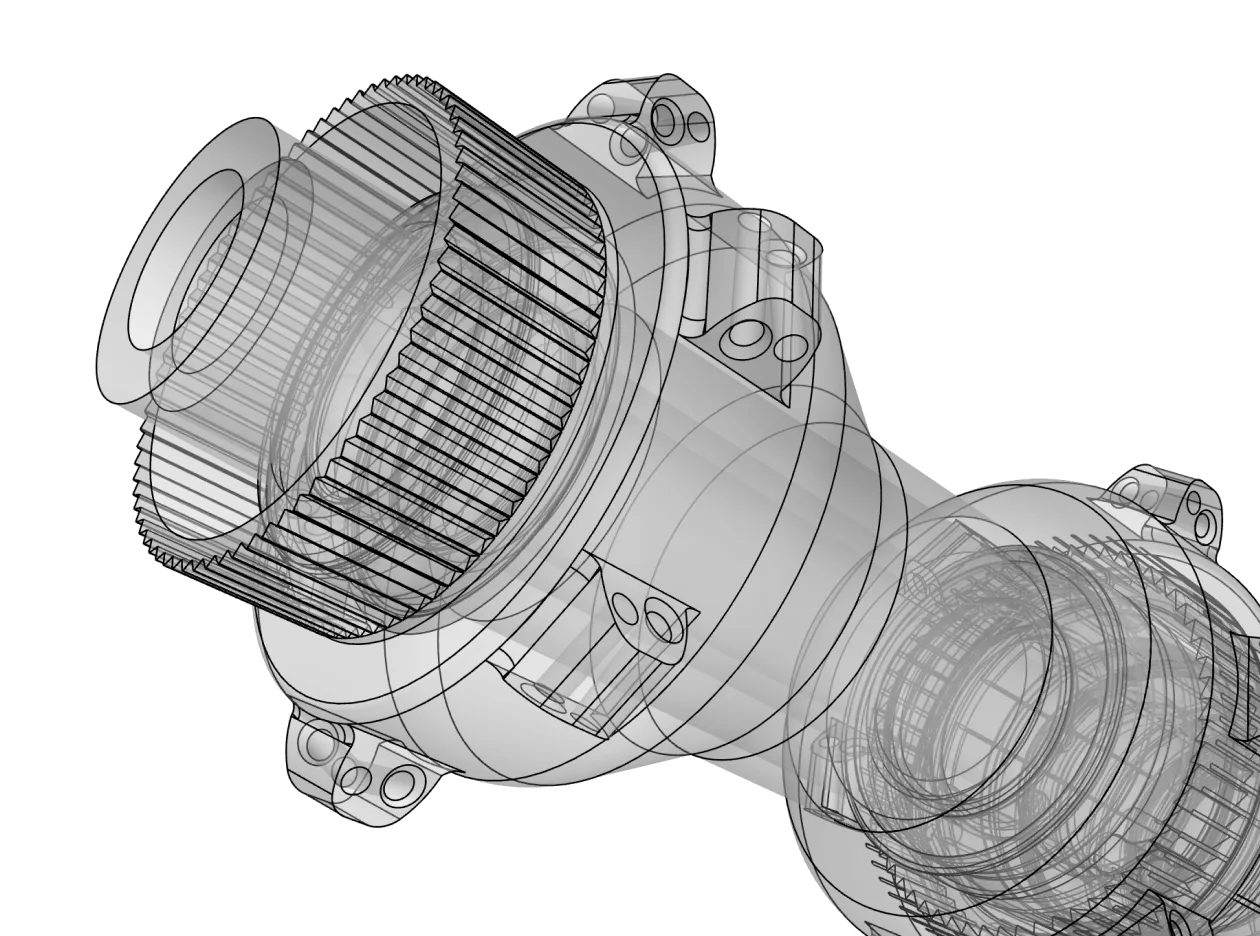
CAD file types generally fall into three categories based on how they store data:
STEP (Standard for the Exchange of Product model data) is one of the best CAD file formats for interoperability in professional engineering. It preserves precise geometry across almost all CAD platforms.
If you are moving between systems that share the same modeling engine (for example, moving between Shapr3D and SolidWorks, which both use the Parasolid engine), X_T or X_B is even better, as it offers the highest fidelity with smaller file sizes.
Precise B-rep (boundary representation) files use mathematical equations to define curves and surfaces. They are infinitely scalable and perfect for manufacturing.
Tessellated or mesh files approximate a shape by covering it in a “mesh” of flat polygons (usually triangles). While they look smooth from a distance, they lack the mathematical precision required for high-end engineering or CNC machining.
For 3D printing, you need a mesh format that your slicer software can read. Here are a few of the most common formats:
Yes, Shapr3D can convert between different file formats. You can import an SLDPRT (native) file and export it as a STEP (neutral) or STL (mesh) file. However, keep in mind that you can turn a B-rep file into a mesh, but converting a mesh file back into a precise, editable CAD solid often requires manual rebuilding.
While neutral CAD file formats are excellent for transferring geometry, they typically do not include feature history. If you create a block and then add a fillet in Shapr3D, a STEP file will show the finished shape, but the person opening it in another program won’t see the Fillet step in their history tree. They receive a “dumb solid” that is mathematically perfect but lacks the step-by-step history used to create it.
