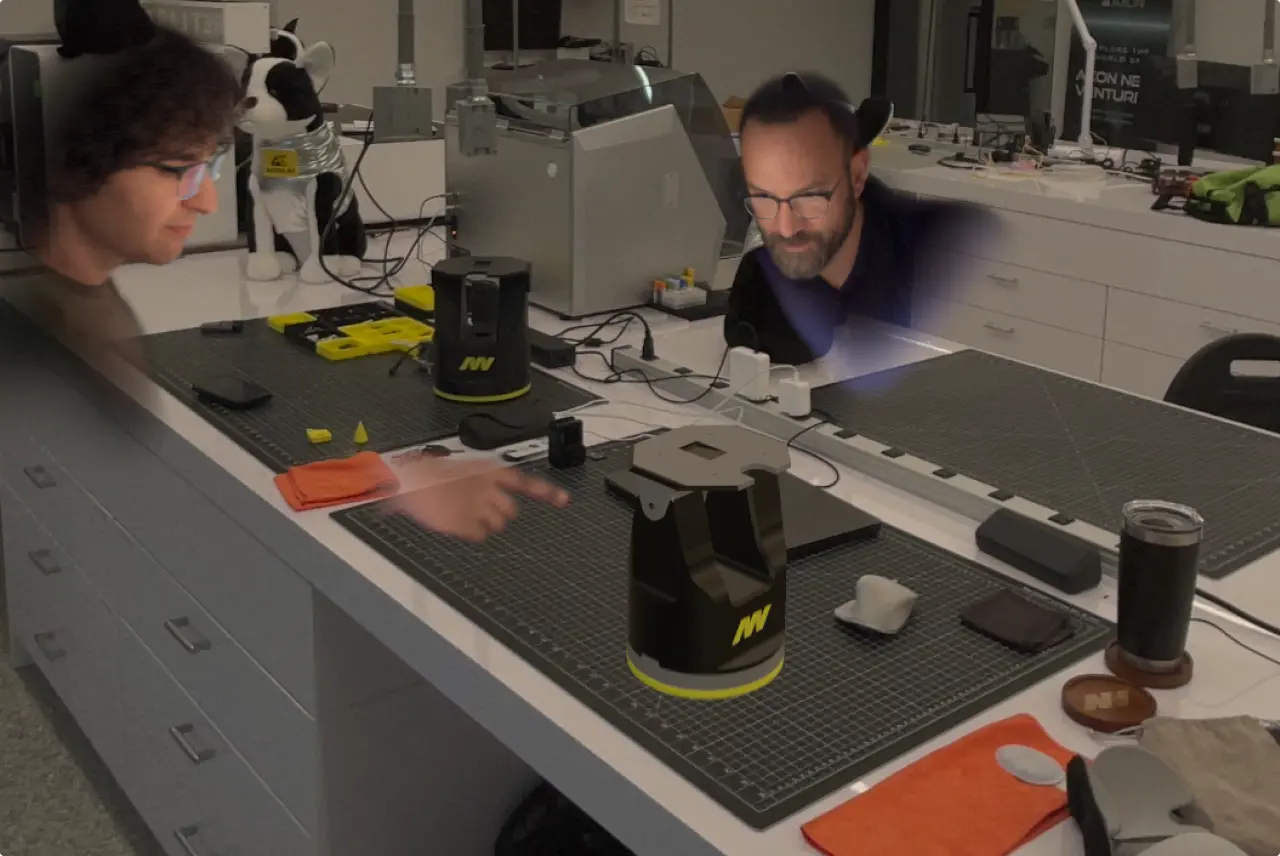

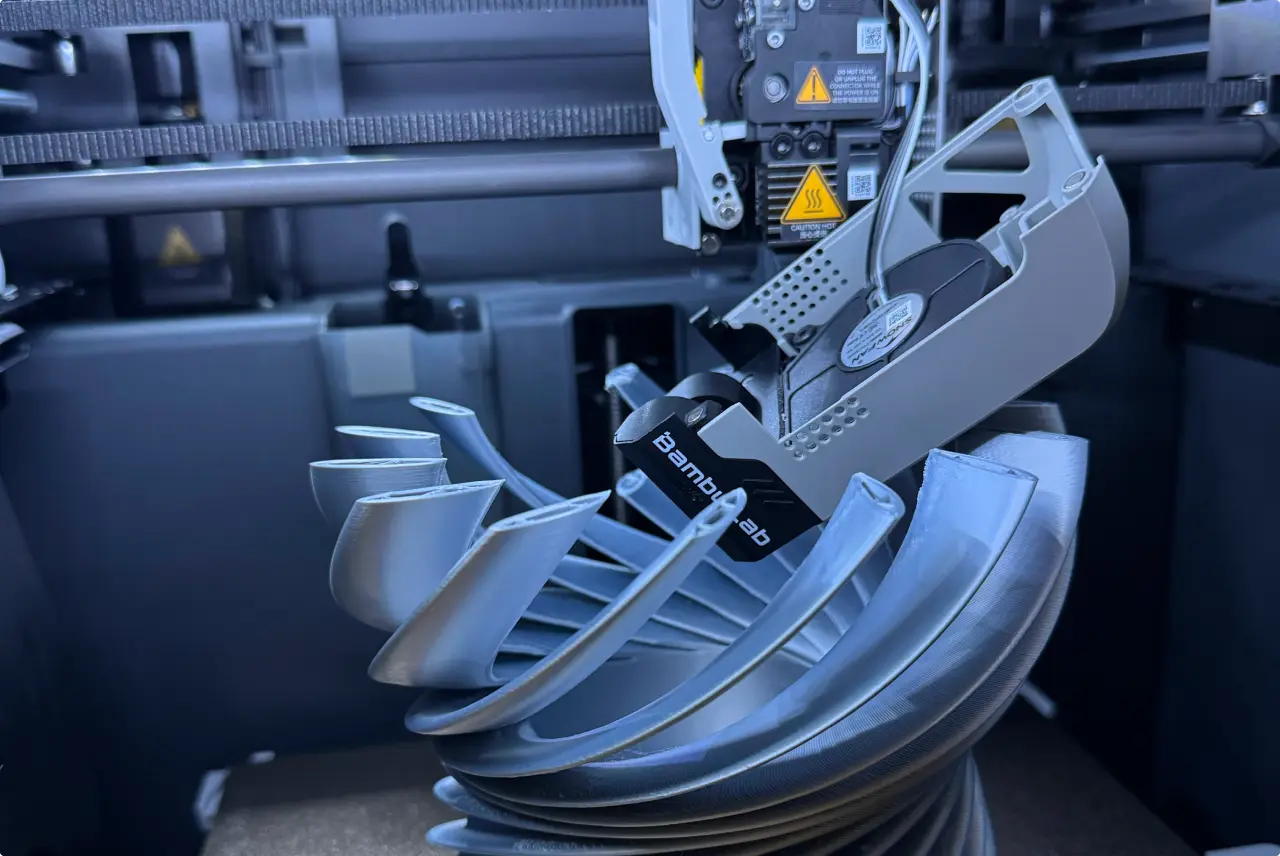
When a budget 3D printer costs only a few hundred dollars and is small enough to fit on a desk, that makes it an easy entry point for anyone to design and print their own creations. But you don't even have to own your own printer to get started: many cities have 3D print shops or Fab Labs that makers can visit to print their designs.
The applications for 3D printing go way beyond personal designs. In the manufacturing industry, industrial printers can run into the tens of thousands of dollars and be used to print jigs and fixtures, tooling, custom components, and lightweight lattice structures. Additive manufacturing, as it’s often called in this setting, allows engineers to cut costs while speeding up the production of parts, using special materials designed for durability, rigidity, or heat resistance.
Whether you’re a hobbyist or a manufacturing technician on the shop floor, creating your own designs requires 3D modeling software. Most people turn to CAD tools to design and prepare their files for 3D printing.
We’ve rounded up a few of the most popular CAD software for 3d printing to help you choose.
What to look for when choosing CAD software for 3D printing
Knowing what to look for in a piece of software can be hard, especially if you’re new to 3D printing. And because there are so many different ways to use 3D printers, what works for one person may not be the right fit for another.
Below are a few factors we used to narrow down our list — keep them in mind as you evaluate your options.
Ease of use
If you’re new to using CAD, ease of use is an important factor. You want to choose a program that’s intuitive and doesn’t require a lot of training or ramp-up time, so you can jump right into modeling.
Even if you’ve used CAD software before, switching to a new program can come with its own learning curve. Look for a tool that is known for being easy to pick up and has comprehensive resources available like tutorial videos, a help center, and how-to guides.
Design strengths
What features do you need to model your 3D print design? Different softwares have different strengths, so choose one that matches what you want to create. Some programs may model organic shapes better, while others are better at creating precise parts that need to fit into a piece of equipment or guide a tool into place.
Modeling approach
If you're a beginner CAD user, or prefer a more freeform approach to modeling, look for programs that allow you to edit your model using a push-pull method of grabbing an edge to fillet it or a face to extrude.
If you want to be able to change the parameters of your model easily, choose a parametric modeling software. This records each step you’ve taken, allowing you to go back through your history and change parameters easily without having to rebuild your entire model.
Some software options combine these approaches by recording your history in a feature tree while also allowing for direct modeling, meaning you can edit geometry without using the model's parametric history.
Precise geometry
When you create a 3D model for printing, it’s important that your model is watertight (also known as manifold), meaning it is a solid body with no gaps or holes. Some design software, especially ones that are less precise, can create small gaps, especially if edges don’t line up exactly. Non-manifold models can lead to failed prints or printer errors.
Export options
Part of the process of preparing your model to print involves using a 3D printing slicer like PrusaSlicer or Bambu Studio to translate your model into machine-readable G-code. True to its name, slicer software “slices” your model into thin layers and generates toolpaths so the printer has instructions for how to move to print each layer.
The most common file formats for exporting to slicers include:
- 3MF — Stores your geometry as mesh, along with project metadata that can include measurement units, colors, and material types. File size is smaller than a traditional STL. Use this if your project has multiple colors and materials.
- STL — Universally supported file format for 3D printer slicers that describes the surface of your object with mesh triangles. Best for simple, single-color prints that don’t require a high level of precision.
- STEP — Uses NURBS, not mesh, meaning curves are perfectly precise. Best for functional prints and mechanical pieces that need to fit together perfectly.
- OBJ — Can store color and texture data via a companion .mtl file, making it a good choice for artistic prints. However, it may not be compatible with some slicer softwares.
Make sure your 3D design software is able to export these file types before you start modeling.
Hardware and system requirements
Many high-end CAD systems are CPU-intensive, requiring powerful workstation computers with high-frequency processors to run complex modeling operations. If you don’t have this type of hardware, look for browser-based options like Tinkercad, or CAD tools that can run on regular laptops or iPads like Shapr3D.
Cost
Paid plans for 3D modeling and 3D CAD software can vary depending on their features, robustness, and intended audience. You may not need to pay a lot of money for software with advanced features if you only want to use it for simple designs.
Many of the options below have free trials or free plans with limited functionality, but advanced features or export options require a paid license.
Best CAD software for 3D printing at a glance
The table below compares the best CAD software for beginners based on use case, features, platforms, and pricing.
Quick and easy 3D CAD and modeling software
The options below are often praised for their ease of use on sites like G2 and Reddit.
Shapr3D for speed and precision
G2 rating: 4.8/5 stars
Best for: CAD users at all levels (beginners to experts)
Strength: Speed and precision
Pricing: Free Basic plan, paid plans start at $299/year*
Pros: Ease of use, direct and history-based parametric modeling capabilities, intuitive sketching with iPad and Apple Pencil, exports common file types compatible with 3D slicers (with paid plan)
Cons: Free plan limits export options and visualization tools
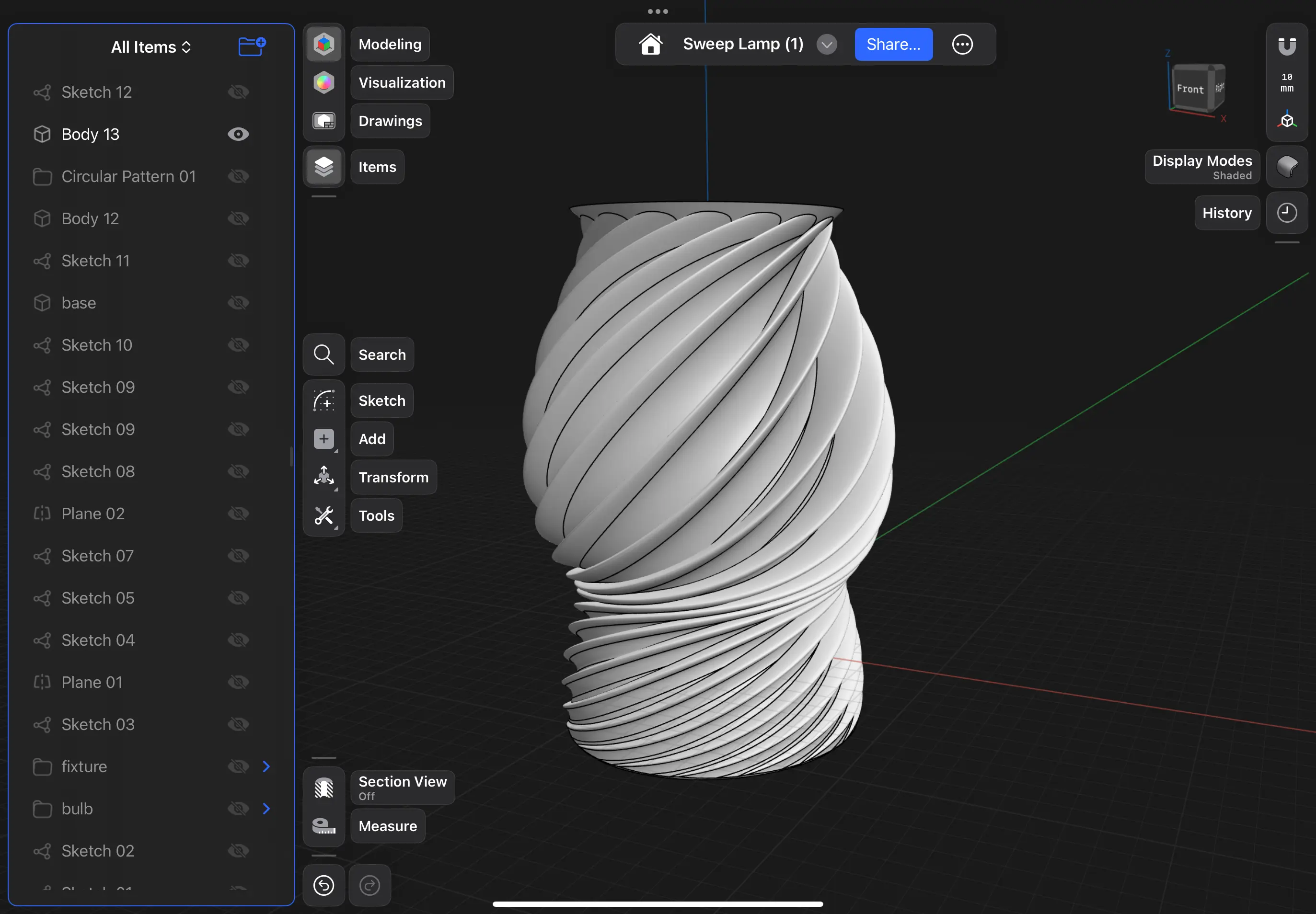
Shapr3D is a 3D CAD software that’s known for being easy to learn and use in personal and professional settings. From rapid prototyping of mechanical parts to designing a quick piece for your home or office, Shapr3D shines anytime you need to model with speed and precision.
For hobbyist users and those who are just getting started with CAD software, it has built-in tutorials and an intuitive modeling experience using the iPad and Apple Pencil. Its adaptive UI means that when you select a 3D modeling tool, it predicts what tools you want to use next and makes them available on the screen, cutting down the time it takes to find those tools in the menu.
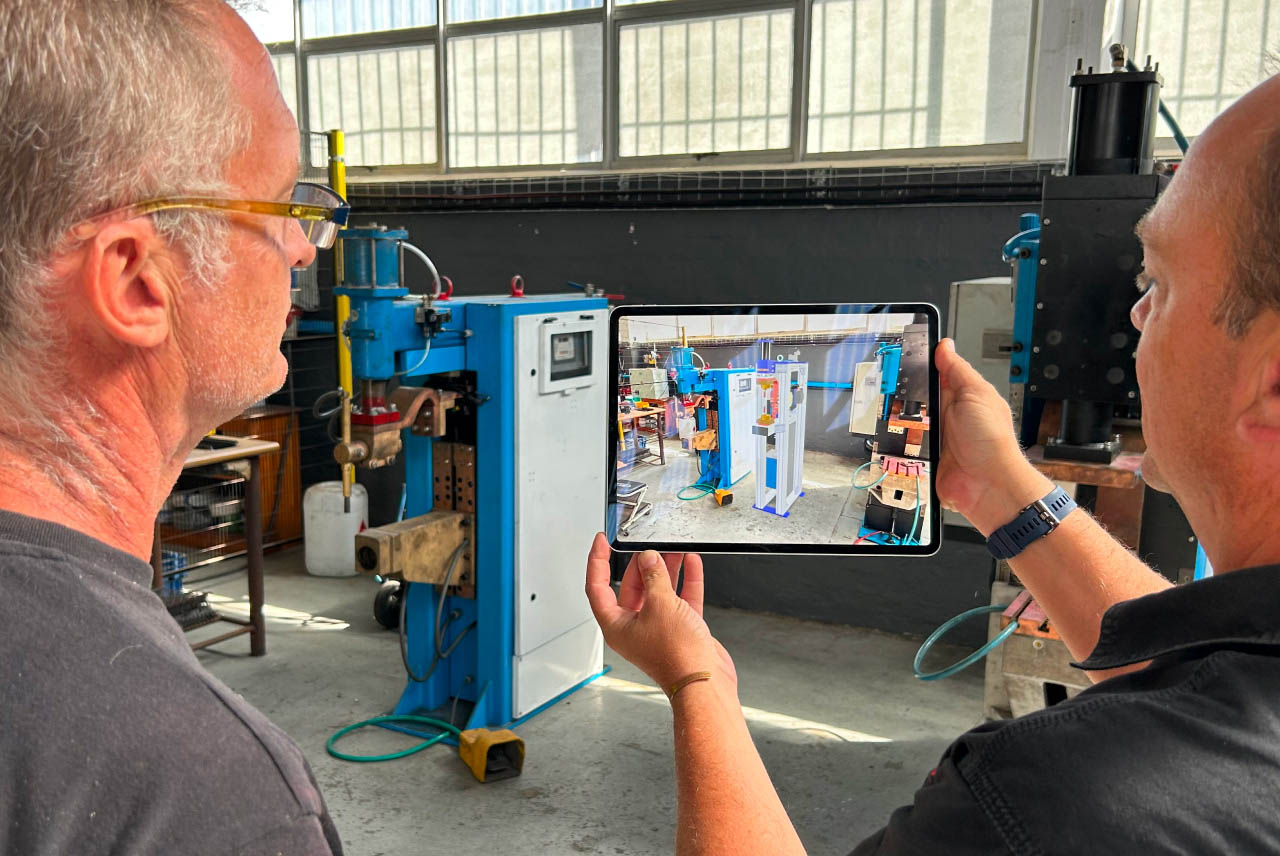
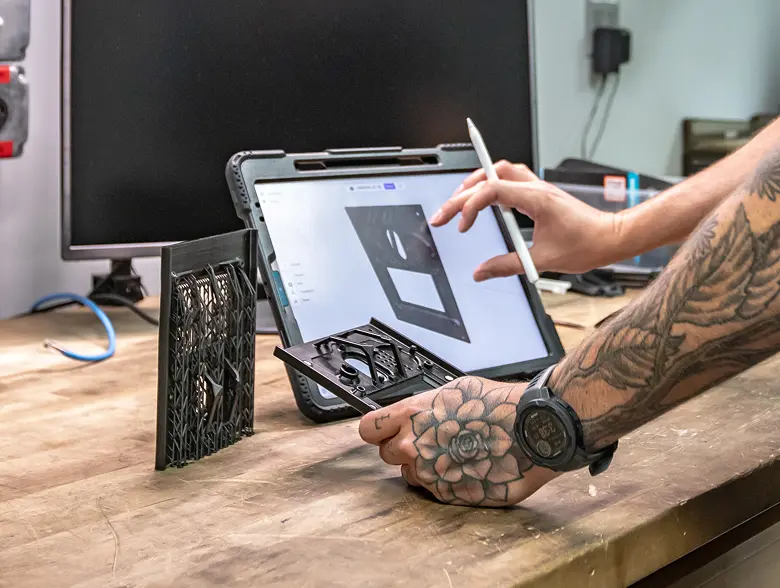
Professional engineers and technicians also use Shapr3D’s iPad app for shop-floor CAD workflows, from modeling custom parts on-site to preparing designs for prototyping or 3D printing. Taking the iPad to the production floor is easier and more efficient than moving between a machine and a desktop workstation. That being said, Shapr3D can also be used on Mac and Windows desktop systems. Files sync to the cloud for multi-platform access, so you don’t have to feel tied down to a specific device.
Shapr3D is powered by Siemens Parasolid, the gold standard for CAD kernels with manufacturing-grade precision and robustness. This makes it best for those who want to balance mechanical CAD precision with a quick modeling experience.
SelfCAD for integrated slicer capabilities
G2 rating: 4.3/5 stars
Best for: Beginners
Strength: Integrated slicer capabilities
Pricing: Free plan, paid plans start at $139/year*
Pros: Integrated slicer, 3D printing workflow, push-pull modeling
Cons: Only available on PC and online, lacks parametric modeling capabilities
SelfCAD’s biggest strength as a 3D printing software is its integrated slicer product. As an all-in-one CAD, renderer, and slicer software, it provides a full end-to-end workflow for 3D printing enthusiasts. You can design and generate G-code for your printer without leaving the app.
Push-pull modeling capabilities make it easy to learn, but it doesn’t generate a full history tree. Changing the dimensions of one feature could result in a broken model.
SelfCAD has a browser-based option and a downloadable PC application. Because it’s a mesh-based modeler, performance can suffer on the online version.
Tinkercad for simple 3D prints
G2 rating: 4.5/5 stars
Best for: Beginners
Strength: Simple 3D prints
Pricing: Free
Pros: Clean, user-friendly interface, pre-existing 3D shapes, drag-and-drop functionality, video tutorials
Cons: Only available as a web app, no parametric modeling
Tinkercad is a popular entry point for 3D modeling. With its drag-and-drop interface and library of simple shapes, it’s easy to learn and create simple designs for 3D printing. It also has a built-in connection to export your model directly to a slicer.
However, as a mesh modeler, it struggles with precise curves. Those who want to create more complex models or need to print professional parts may feel limited by Tinkercad’s capabilities.
Sketchup for easy modeling
G2 rating: 4.5/5 stars
Best for: Beginners
Strength: Easy modeling
Pricing: Free plan, Paid plans start at $129/year*
Pros: Ease of use, quick modeling, web and desktop versions, simple UI, library of premade 3D models
Cons: No parametric functionality, models are not true solids
If easy modeling is your top priority, Sketchup might be for you. Many users praise Sketchup for being easy to use, especially for quick concepts and things like interior design layouts. Push-pull modeling makes it easy to create objects.
Users note that as a surface modeler, Sketchup struggles with creating solid-body, manifold models that are needed for 3D printing. Specific workflows and extensions can provide a workaround, but you may need to troubleshoot solutions if you find that your model isn’t watertight.
3D design options for mid-level users
Rhinoceros 3D (Rhino) for organic shapes
G2 rating: 4.4/5 stars
Best for: Beginner to intermediate 3D modelers
Strength: Organic shapes
Pricing: Free trial, Commercial plans start at $995* for a perpetual license
Key features: Freeform 3D modeling tools, NURBS surfacing, Grasshopper integration for parametric design, ShrinkWrap feature
Pros: Excels at organic shapes, models highly suited for generating 3D printing files, one-time purchase fee
Cons: Steep learning curve, high upfront cost
Rhino is a versatile 3D modeling software known for its ability to create complex, organic shapes like curves and lattices with extreme precision. Although it’s not natively a parametric modeler, the Grasshopper integration provides history trees so you can change parameters quickly without rebuilding your model. Some users may find that its command line interface takes time to get used to.
A useful feature for 3D printing is ShrinkWrap, available in Rhino 8. It provides a watertight “seal” around non-manifold models, instantly fixing them for 3D printing.
Autodesk Fusion 360 for powerful parametric modeling
G2 rating: 4.5/5 stars
Best for: Intermediate-level CAD users, engineers
Strengths: Powerful parametric modeling
Pricing: Free plan (personal use), paid plans start at $680/year*
Pros: Full engineering workflows, all-in-one environment, personal plan, parametric modeling
Cons: May be too complex for beginners and light CAD users
If you’re a hobbyist who has no intention of selling your 3D-printed objects, Autodesk Fusion’s personal plan may be right for you. It has limited import/export options and standard 3D modeling functionality. 3D printer enthusiasts love it for its powerful parametric modeling capabilities, but G2 reviewers also note that it has a steep learning curve and sometimes has performance issues with larger assemblies.
On the other hand, if you’re a midsize shop, you might want to take a look at Fusion 360’s paid plan. At $680 a year, it’s not cheap, but its integrated CAM workflows and robust feature set make it a popular choice for professional manufacturers.
CAD for complex 3D-printed parts
SOLIDWORKS for mechanical engineering designs
G2 rating: 4.4/5 stars
Best for: Advanced CAD users, engineers
Strengths: Mechanical engineering designs
Pricing: Makers plan (personal use) starting at $48/year, Business plans starting at $2,820/year*
Pros: Robust feature set, integrations with third-party apps, AI assistant, parametric modeling
Cons: Limited to desktop and Windows OS, hardware intensive
SOLIDWORKS is a great choice for professional additive manufacturing use cases and design-to-manufacturing workflows. A popular software for mechanical engineers, it offers parametric capabilities that allow you to create and edit entire assemblies by changing one parameter. As a CAD/CAM/CAE platform, it has built-in FEA (finite element analysis) capabilities that allow you to run simulations to test potential weaknesses in your design.
Because it’s built for engineers, SOLIDWORKS has a steep learning curve that makes it difficult to get started. Coupled with its robust hardware requirements, it has a high entry point for beginners.
CATIA for high-end additive manufacturing
G2 rating: 4.2/5 stars
Best for: Advanced CAD users
Strengths: High-end additive manufacturing
Pricing: Quarterly subscription starts at $2,268 per quarter for CATIA Mechanical Designer
Pros: Advanced 3D geometry use cases, lattice design, simulation, AI assistant
Cons: Steep price tag and learning curve, hardware requirements
CATIA is widely known by engineers as a powerful platform for design, simulation and analysis, and manufacturing. Popular in the aerospace and automotive industries, it’s known for being able to handle the most complex geometric designs and use cases.
Similar to SOLIDWORKS, CATIA’s primary users are engineers, not hobbyists. Its high cost and learning curve makes it a good fit for the most advanced additive manufacturing applications, but if you want to print a simple bracket, you might be better off choosing a software with a lower barrier to entry.
Best free, open-source software (FOSS) for 3D printing
Open-source CAD and 3D modeling software has source code that anyone can inspect, modify, and enhance. It’s often developed collaboratively and usually builds a dedicated community of users that perform audits, fix bugs, and share improvements with each other.
Open-source software is free and can be customized to a user’s specific needs. Makers may prefer it for those reasons, but users might find that operations fail more often than with commercial software. It also doesn’t have dedicated support, so beginners may have to be prepared to rely on community forums.
FreeCAD for open-source enthusiasts
G2 rating: 4.1/5 stars
Best for: Tech-savvy CAD users
Strengths: Open-source
Pricing: Free
Key features: Parametric modeling
Pros: Strong community support, customizable experience
Cons: Open-source model doesn’t offer the same robustness as other programs
FreeCAD is one of the most popular FOSS CAD programs out there. It’s powered by Open CASCADE, an open-source geometry kernel that implements the b-rep math responsible for describing geometry in CAD.
As an open-source software, FreeCAD has its advantages: it’s free forever, there’s a strong community of users for support, and you can customize it how you want. FreeCAD was built to be controlled by Python scripts, allowing you to create custom Workbenches based on the tools and workflows that matter most to you. Users note, however, that the Workbench system and UI in general can feel clunky compared to more streamlined experiences found on Shapr3D or Sketchup.
Blender for artistic designs
G2 rating: 4.6/5 stars
Best for: Beginner to intermediate 3D modelers
Strengths: Artistic designs, jewelry
Pricing: Free
Pros: Strong community support, high-quality renderings, organic modeling, visualization
Cons: Lack of precision tools, lack of parametric workflow, steep learning curve, mesh-based software requires conversion
Blender is an open-source option that’s often seen in artistic fields like 3D animation, video games, and character design. Its sculpting brush excels at detailed modeling, especially for organic shapes found in jewelry and decorative pieces.
It is non-parametric, meaning you can’t edit one part of your design and have the rest of your model update automatically. The mesh-based modeling experience can also lead to non-manifold designs, but it does have a tool to detect and fix these errors. It shines as a modeler for creating 3D-printed character pieces, animal figurines, or other organic shapes.
Get started with your 3D print design
Ready to start modeling? Download Shapr3D for free to try it out. It’ll help you turn your idea into a 3D model in no time.
FAQ
What is CAD software and why is it important for 3D printing?
CAD software allows you to create digital 3D models of physical objects. 3D printers require digital designs.
You can find premade 3D models for printing on sites like Printables or Thingiverse, but if you want to print your own creation, or need to design precise parts for additive manufacturing, computer-aided design (CAD) is the best way to do so.
After you’re finished designing, you can export your model as a file to your slicer of choice.
There are many different types of CAD software: some use parametric modeling, which allows you to easily modify designs by changing the parameters of your model, and others use direct modeling.
What is the difference between cloud-based and desktop CAD software?
Some CAD platforms are cloud-based, meaning the software runs in the cloud. Local CAD applications run on your Windows, Mac, or iPad device.
Downloadable CAD software is best for those who prefer to work offline or want their files stored locally on their device for compliance or accessibility reasons.
If you want features like cloud collaboration or to be able to access designs from any internet-connected device, choose a browser-based platform.
Which CAD software is best for beginners in 3D printing?
Shapr3D, SketchUp, and Tinkercad are all known for their ease of use, especially for CAD beginners.
If you’re just starting out with 3D printing, Shapr3D’s precise geometry excels at producing watertight models. SketchUp users might find themselves frustrated by non-manifold models.
SelfCAD is another solid beginner option because it has an integrated slicer, providing an all-in-one workflow.
What’s the difference between parametric, direct, and mesh modeling?
Parametric, direct, and mesh modeling refer to different modeling workflows or approaches.
Parametric modeling is history-based and works by recording each step in a “feature tree” or “history tree.” It allows you to change an earlier step in your process and automatically updates the rest of your model according to the parameters you’ve set. This is the best option for editing your model without rebuilding it completely, but it requires planning so your edits don't “break” the later steps.
Direct modeling does not record your steps. You can interact with the geometry, often by grabbing and pulling faces or edges. If you want to change one step, such as making a hole bigger, you need to manually edit the rest of the model to make it fit your design intent.
Mesh modeling doesn’t use b-rep (the way geometry is represented in traditional CAD software). The surface of your model is made of tiny triangles or polygons. Individual points, called vertices, can be grabbed and dragged to change the shape of your model’s surface. It allows you to create more organic shapes and details, but it isn’t as precise as b-rep.
Can I use free CAD software for professional 3D printing projects?
Yes. Some free CAD options, like FreeCAD, Blender, and Tinkercad, allow commercial usage — you can sell your original designs or the 3D prints you create. Other free plans or options, such as educational licenses or Autodesk Fusion 360’s personal plan, should not be used for professional 3D printing projects.
How do I fix non-manifold or “broken” models before 3D printing?
Some slicers, such as Bambu Studio, PrusaSlicer, OrcaSlicer, or Cura, have a built-in tool or plugin that allows you to “fix” small holes right before printing.
Other tools, like Rhino or Autodesk Meshmixer, work by “shrink-wrapping” your design in a watertight skin.
Microsoft 3D Builder is another option for fixing your non-manifold models. Simply open an STL file in 3D Builder, and follow the prompts to repair your model.
How do I choose the right CAD software for my industry or use case?
Choosing the right CAD software means finding the right fit for your industry or use case.
If you’re an engineer who needs parametric modeling capabilities and values precision, look at Shapr3D, SOLIDWORKS, Fusion 360, or CATIA.
If you’re a hobbyist making creations for your home or personal use, choose a software with a low barrier to entry, like Shapr3D, Tinkercad, Sketchup, or SelfCAD.
If you’re a jewelry designer, look at 3D modelers that excel at organic forms like Blender or Rhino.
If you like flexibility and being able to design on the go, look at software that enables that. Shapr3D runs on the iPad and works offline. Tinkercad allows you to access your designs from any browser.
*Free or special pricing available for students and/or educators.